Showing posts with label Label. Show all posts

Thursday, June 6, 2013

Black Color Cloud Label Widget For Blogger

File Under: , 2 comments

In this post im  gonna  explain  how to add attractive Black cloud label widget for blogger. So this labels are neat and  nice  looking, peoples  can find the any categories  easily. Few  months  ago  i published few post with   different  style  cloud  labels  with  various colors. If  this  is not  match  for  you. you  can  find best one  from  below list. If  you have  any  problem with adding Black  Cloud Label Widget . Just leave a comment or contact me.I will help.
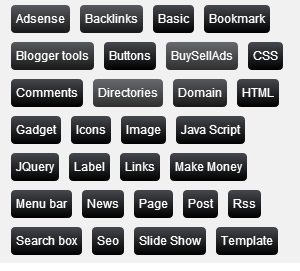
Grey+Color+Cloud+Label+Widget

You may like these articles

Green Cloud Label widget for blogger
Orange Cloud Label widget for blogger
Blue Cloud Label widget for blogger

How to add Black Color Cloud Label Widget For Blogger


1. Log in to blogger account and Click drop down.
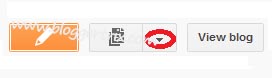
blog-post-option
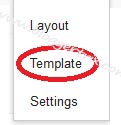
2. Now select "Template" Like Below.

Select-template

3. Now you can see Live on blog, Click EDIT HTML Button"

4. Now click Proceed button.
   
5. Find this tag by using Ctrl+F    ]]></b:skin>

6. Paste below code Before ]]></b:skin> tag
/*-----Custom Labels widget by www.bloggertrix.com----*/

#Label1 a{float:left;
height:18px;
line-height:18px;
position:relative;
font-size:12px;
margin-bottom: 9px;
margin-left:10px;
padding:5px;
background: rgb(69,72,77); /* Old browsers */
background: -moz-linear-gradient(top,  rgba(69,72,77,1) 0%, rgba(0,0,0,1) 100%); /* FF3.6+ */
background: -webkit-gradient(linear, left top, left bottom, color-stop(0%,rgba(69,72,77,1)), color-stop(100%,rgba(0,0,0,1))); /* Chrome,Safari4+ */
background: -webkit-linear-gradient(top,  rgba(69,72,77,1) 0%,rgba(0,0,0,1) 100%); /* Chrome10+,Safari5.1+ */
background: -o-linear-gradient(top,  rgba(69,72,77,1) 0%,rgba(0,0,0,1) 100%); /* Opera 11.10+ */
background: -ms-linear-gradient(top,  rgba(69,72,77,1) 0%,rgba(0,0,0,1) 100%); /* IE10+ */
background: linear-gradient(to bottom,  rgba(69,72,77,1) 0%,rgba(0,0,0,1) 100%); /* W3C */
filter: progid:DXImageTransform.Microsoft.gradient( startColorstr='#45484d', endColorstr='#000000',GradientType=0 ); /* IE6-9 */
color:#fff;
text-decoration:none;
-moz-border-radius:4px;
-webkit-border-radius:4px;
border-radius:4px;}
#Label1 a:hover{fbackground: rgb(73,192,240); /* Old browsers */
background: -moz-linear-gradient(top,  rgba(73,192,240,1) 0%, rgba(44,175,227,1) 100%); /* FF3.6+ */
background: -webkit-gradient(linear, left top, left bottom, color-stop(0%,rgba(73,192,240,1)), color-stop(100%,rgba(44,175,227,1))); /* Chrome,Safari4+ */
background: -webkit-linear-gradient(top,  rgba(73,192,240,1) 0%,rgba(44,175,227,1) 100%); /* Chrome10+,Safari5.1+ */
background: -o-linear-gradient(top,  rgba(73,192,240,1) 0%,rgba(44,175,227,1) 100%); /* Opera 11.10+ */
background: -ms-linear-gradient(top,  rgba(73,192,240,1) 0%,rgba(44,175,227,1) 100%); /* IE10+ */
background: linear-gradient(to bottom,  rgba(73,192,240,1) 0%,rgba(44,175,227,1) 100%); /* W3C */
filter: progid:DXImageTransform.Microsoft.gradient( startColorstr='#49c0f0', endColorstr='#2cafe3',GradientType=0 ); /* IE6-9 */}
.label-size{line-height:1.5;align:left;}
.h2head-text {margin:-40px 10px 8px 55px;color:#666666;font-family:arial;font-size:13px;}

#Label1{width:320px;;border-bottom-width: 1px;
border-bottom-style: solid;  
border-bottom-color: #D8D8D8;}


7. Now Click  Save Template.
Hope Black Color Cloud Label Widget helps to make your blog attractive.
Read More

Tuesday, May 21, 2013

Purple Cloud Label Widget For Blogger

File Under: , No comments

In this post im gonna explain how to add attractive purple cloud  label widget for blogger. So this Purple Cloud labels are neat and nice looking, peoples can find the any categories easily. Few months ago i published few post with different style cloud labels  with various colors. If this is not match  for you. you can find best one from below list. I cant provide demo for this  tutorial.Just look at below purple cloud label style.

purple-Cloud-Label

You may like these articles.
Green Cloud Label widget for blogger
Orange Cloud Label widget for blogger
Blue Cloud Label widget for blogger

How to add Purple Cloud Label Widget For Blogger


1. Log in to blogger account and Click drop down.
blog-post-option
2. Now select "Template" Like Below.

Select-template
3. Now you can see Live on blog, Click EDIT HTML Button"

4. Now click Proceed button.
   
5. Find this tag by using Ctrl+F    ]]></b:skin>

6. Paste below code Before ]]></b:skin> tag

/*-----Custom Labels widget by www.bloggertrix.com----*/
#Label1 a{
outline:1px dotted #FEB380;border: 1px rgba(0,0,0,0.2) solid;padding: 6px 8px 6px 14px;text-decoration:none;
color:black;white-space: nowrap;
font-family: arial,serif;text-transform:capitalize;
font-size: 12px;font-weight: bold;
position: relative !important;background: #aa00ff;
-moz-opacity:0.75;
-khtml-opacity:0.75;opacity:0.75;
filter:alpha(opacity:75%);
float:left;padding: 4px 3px;
margin: 0 5px 5px 0;
border-radius:4px 4px; -moz-border-radius:8px 4px 4px 4px; -khtml-border-radius:4px 4px 4px 4px; -webkit-border-radius:4px 4px 4px 4px; border-radius:4px 4px 4px 4px;
}
#Label1 a:hover {
-moz-opacity:1;
-khtml-opacity:1;
opacity:1;
background:#A55A27;color:white;
-webkit-transition:all ease-in-out .5s;
-moz-transition:all ease-in-out .5s;
-o-transition:all ease-in-out .5s;
transition:all ease-in-out .5s;
}
#Label1 a:active {
background:#B24700;color:#80FFFE;
-webkit-transition:all linear .5s;
-moz-transition:all linear .5s;
-o-transition:all linear .5s;transition:all linear .5s;
}

7. Now Click  Save Template. You are done.
leave a comment, if you need  a help to add this Purple cloud Label Widget to your blog.
Read More

Tuesday, March 26, 2013

Yellow Color Cloud Label Widget For Blogger

File Under: 1 comment


In this post im  gonna  explain  how  to add attractive Yellow cloud  label  widget for  blogger. So this labels are neat and  nice  looking, peoples  can find the any categories  easily. Few  months  ago  i published few post with   different  style  cloud  labels  with  various colors. If  this   is  not  match  for  you. you  can  find best one  from  below  list. I  cant  provide   demo  for  this   tutorial. If  you  have  any   problem  with   this tutorial. Just leave a comment or contact me.

Green Cloud Label widget for blogger
Orange Cloud Label widget for blogger
Blue Cloud Label widget for blogger
Get All here.

Yellow+Color+Cloud+Label+Widget

1. Log in to blogger account and Click drop down.
blog-post-option
2. Now select "Template" Like Below.

Select-template

3. Now you can see Live on blog, Click EDIT HTML Button"

4. Now click Proceed button.
   
5. Find this tag by using Ctrl+F    ]]></b:skin>

6. Paste below code Before ]]></b:skin> tag
/*-----Custom Labels widget by www.bloggertrix.com----*/

#Label1 a{float: left;
    font-size: 11px!important;
    line-height: 1em!important;
    display: block;
    margin-right: 7px;
    margin-bottom: 7px;
    padding: 7px;
    background: #ffd964 url(https://blogger.googleusercontent.com/img/b/R29vZ2xl/AVvXsEiLWYa7m9rdAHWlBWshNZ9OfICWq_nG9ScPX7vB2ZszNm2VnMK6ig_MEpT3mVxpm4P_0z3638pntQnA8B6mVmrWKauJ1IoJz_SFuVwq6rWl5_4mtf3eS626jWTiifO-r2TSIdRliPjLcN0/s1600/yellow-btrix.png);
    border: 1px solid #F9B653;
    color: #9C6533!important;
    text-shadow: 1px 1px 0px rgba(255,255,255,0.4);
    box-shadow: 1px 1px 1px 0px rgba(0,0,0,0.1);
    webkit-border-radius: 3px;
    -moz-border-radius: 3px;
    border-radius: 3px;
}
#Label1 a:hover{background: url(https://blogger.googleusercontent.com/img/b/R29vZ2xl/AVvXsEi3L8KnjvDZeBsKALbpx80jrTL3yJdlys4rj5D4JtBDB1XLMLFZjFEzGeCpxZatjEcCxl3VHCjqcv5kEGnDjxWu7ichqVzODiPW8b2n4Fl4DXszGQ9m99Elw2QY3jS-MbcdLxttyxTHXC4/s1600/yellow-btrix-hover.png);}
#Label1 a:active { background: url(https://blogger.googleusercontent.com/img/b/R29vZ2xl/AVvXsEioOvMlaVyNOsfSOgC88MucLzF95ZZpbkfbMOVam1IF03hei52ZF4KrhR_eZ21uHNjCmif_LqymUuAT0_IYIgvX5XDIhcdPMEufd1Wav-jMdb6cRQuKjFnZ7XPcRUGhOUYQd9Iu5UBQO9U/s1600/yellow-btrix-active.png); }

7. Now Click  Save Template.

    You are done...
Read More

Wednesday, January 23, 2013

Css3 Green Cloud Label Widget For Blogger

File Under: 3 comments

In this post im gonna explain how to add nice label/ category widget  for blogger.This labes looks great, visitors   can  find  what  category  they  needs. few months  ago i  was  posted   about    Attractive Css3 Labels /  Category   Widget For  Blogger.  However this is also same trick with different style. Im using CSS3 for  this  trick  check blow image for example.Follow below steps to add it to your blog. Its easy.
Css3+Green+Cloud+Lable+Widget+For+Blogger


1. Log in to blogger account and Click drop down.
blog-post-option
2. Now select "Template" Like Below.

Select-template

3. Now you can see Live on blog, Click EDIT HTML Button"

4. Now click Proceed button.
   
5. Find this tag by using Ctrl+F    ]]></b:skin>

6. Paste below code Before ]]></b:skin> tag
/*-----Custom Labels widget by www.bloggertrix.com----*/

#Label1 a{outline: 1px rgba(255,255,255,0.4) dashed;
    border: 1px rgba(0,0,0,0.3) dashed;
    padding: 4px 10px 4px 20px;
    text-decoration: none;
    color:#000000;
    white-space: nowrap;
font-family: Arial;
    font-size: 12px;
    font-weight: bold;
    position: relative !important;
    background: #8dc63f;
    float: left;
    padding: 5px 3px;
    margin: 0 5px 5px 0;
   border-radius:4px 4px; -moz-border-radius:4px 4px 4px 4px; -khtml-border-radius:4px 4px 4px 4px; -webkit-border-radius:4px 4px 4px 4px; border-radius:4px 4px 4px 4px;
}
#Label1 a:hover{color: rgba(0,0,0,0.5);}
.label-size{line-height:1.5;align:left;}

7. Now Click  Save Template.

    You are done...
Read More

Saturday, November 17, 2012

Attractive CSS Cloud Label Style For Blogger

File Under: , 6 comments

In this post im gonna explain how to add nice label /category widget  for blogger  few weeks ago i was posted   about  Attractive  Css3  Labels /  Category  Widget For  Blogger. So,  this  is  also  same  trick. However this is also same trick with different style. Im using CSS for  this  trick  check blow image for example.Earlier i posted about same trick Change Blogger Label Links As Brick / Box Style. Follow below steps to add it to your blog.Its easy.

Attractive+cloud+label+for+blogger


1. Log in to blogger account & Go to Design >> Edit HTML

2. Find this code  by using Ctrl+F  ]]></b:skin>

3.Paste below code Before ]]></b:skin> code

/*-----Custom Labels Cloud widget by www.bloggertrix.com----*/
.label-size{
margin:0 2px 6px 0;
padding: 3px;
text-transform: uppercase;
border: solid 1px #C6C6C6;
border-radius: 3px;
float:left;
text-decoration:none;font-size:10px;color:#666;}

.label-size:hover {
border:1px solid #6BB5FF;
text-decoration: none;-moz-transition: all 0.5s ease-out;
-o-transition: all 0.5s ease-out;
-webkit-transition: all 0.5s ease-out;
-ms-transition: all 0.5s ease-out;
transition: all 0.5s ease-out;
-moz-transform: rotate(7deg);
-o-transform: rotate(7deg);
-webkit-transform: rotate(7deg);
-ms-transform: rotate(7deg);
transform: rotate(7deg);
filter: progid:DXImageTransform.Microsoft.Matrix(
M11=0.9961946980917455, M12=-0.08715574274765817, M21=0.08715574274765817, M22=0.9961946980917455, sizingMethod='auto expand');
zoom: 1;
}
.label-size a {
text-transform: uppercase;
float:left;
text-decoration: none;
}.label-size a:hover {
text-decoration: none;
}

4. Now Click  Save Template.

    You are done...
Read More

Tuesday, November 6, 2012

Css3 Beautiful Category / Labels Widget For Blogger

File Under: , 7 comments

Few weeks ago i posted about  Attractive Css3 Labels / Category Widget For Blogger.So, this
is also same trick.However this is also same trick with different style. Im using CSS3 Gradients and
Box-Shadow as i told earlier post Check blow image for example.Earlier i posted about same trick
Change Blogger Label Links As Brick / Box Style. Follow below steps to add it to your blog.Its easy.


1. Log in to blogger account & Go to Design >> Edit HTML

2. Find this code  by using Ctrl+F  ]]></b:skin>

3.Paste below code Before ]]></b:skin> code

.label-size a {
    display: inline-block;
    text-decoration: none;
    text-shadow: 0 1px 0 rgba(255, 255, 255, 0.4);
    padding: 4px 7px;
    font-family: 'Helvetica Neue', helvetica, sans-serif;
    font-size: 12px;
    line-height: 14px;
    height: 14px;
    vertical-align: middle;
    margin-bottom: 6px;
    -webkit-border-radius: 4px;
    -moz-border-radius: 4px;
    border-radius: 4px;
    -webkit-box-shadow: 0 1px 1px 0 rgba(0, 0, 0, 0.2), inset 0 1px 0 0 rgba(255, 255, 255, 0.4);
    -moz-box-shadow: 0 1px 1px 0 rgba(0, 0, 0, 0.2), inset 0 1px 0 0 rgba(255, 255, 255, 0.4);
    box-shadow: 0 1px 1px 0 rgba(0, 0, 0, 0.2), inset 0 1px 0 0 rgba(255, 255, 255, 0.4);
}
.label-size a {
    color: #996633;
    border: 1px solid #DDA13C;
    background: rgb(238,177,75);
    background: url(data:image/svg+xml;base64,PD94bWwgdmVyc2lvbj0iMS4wIiA/Pgo8c3ZnIHhtbG5zPSJodHRwOi8vd3d3LnczLm9yZy8yMDAwL3N2ZyIgd2lkdGg9IjEwMCUiIGhlaWdodD0iMTAwJSIgdmlld0JveD0iMCAwIDEgMSIgcHJlc2VydmVBc3BlY3RSYXRpbz0ibm9uZSI+CiAgPGxpbmVhckdyYWRpZW50IGlkPSJncmFkLXVjZ2ctZ2VuZXJhdGVkIiBncmFkaWVudFVuaXRzPSJ1c2VyU3BhY2VPblVzZSIgeDE9IjAlIiB5MT0iMCUiIHgyPSIwJSIgeTI9IjEwMCUiPgogICAgPHN0b3Agb2Zmc2V0PSIwJSIgc3RvcC1jb2xvcj0iI2VlYjE0YiIgc3RvcC1vcGFjaXR5PSIxIi8+CiAgICA8c3RvcCBvZmZzZXQ9IjEwMCUiIHN0b3AtY29sb3I9IiNjYzkxMmQiIHN0b3Atb3BhY2l0eT0iMSIvPgogIDwvbGluZWFyR3JhZGllbnQ+CiAgPHJlY3QgeD0iMCIgeT0iMCIgd2lkdGg9IjEiIGhlaWdodD0iMSIgZmlsbD0idXJsKCNncmFkLXVjZ2ctZ2VuZXJhdGVkKSIgLz4KPC9zdmc+);
    background: -moz-linear-gradient(top,  rgba(238,177,75,1) 0%, rgba(204,145,45,1) 100%);
    background: -webkit-gradient(linear, left top, left bottom, color-stop(0%,rgba(238,177,75,1)), color-stop(100%,rgba(204,145,45,1)));
    background: -webkit-linear-gradient(top,  rgba(238,177,75,1) 0%,rgba(204,145,45,1) 100%);
    background: -o-linear-gradient(top,  rgba(238,177,75,1) 0%,rgba(204,145,45,1) 100%);
    background: -ms-linear-gradient(top,  rgba(238,177,75,1) 0%,rgba(204,145,45,1) 100%);
    background: linear-gradient(top,  rgba(238,177,75,1) 0%,rgba(204,145,45,1) 100%);
    filter: progid:DXImageTransform.Microsoft.gradient( startColorstr='#eeb14b', endColorstr='#cc912d',GradientType=0 );
}
.label-size a:before  {
    content: '\2022';
    color: #FFFFFF;
    margin-right: 4px;
    font-size: 15px;
    line-height: 13px;
    height: 13px;
    vertical-align: text-top;
    text-shadow: 0 -1px -1px rgba(0, 0, 0, 0.2);
}
.label-size a:hover {
    text-decoration: none;
    background: rgb(240,183,86);
    background: url(data:image/svg+xml;base64,PD94bWwgdmVyc2lvbj0iMS4wIiA/Pgo8c3ZnIHhtbG5zPSJodHRwOi8vd3d3LnczLm9yZy8yMDAwL3N2ZyIgd2lkdGg9IjEwMCUiIGhlaWdodD0iMTAwJSIgdmlld0JveD0iMCAwIDEgMSIgcHJlc2VydmVBc3BlY3RSYXRpbz0ibm9uZSI+CiAgPGxpbmVhckdyYWRpZW50IGlkPSJncmFkLXVjZ2ctZ2VuZXJhdGVkIiBncmFkaWVudFVuaXRzPSJ1c2VyU3BhY2VPblVzZSIgeDE9IjAlIiB5MT0iMCUiIHgyPSIwJSIgeTI9IjEwMCUiPgogICAgPHN0b3Agb2Zmc2V0PSIwJSIgc3RvcC1jb2xvcj0iI2YwYjc1NiIgc3RvcC1vcGFjaXR5PSIxIi8+CiAgICA8c3RvcCBvZmZzZXQ9IjEwMCUiIHN0b3AtY29sb3I9IiNkNmEwNDQiIHN0b3Atb3BhY2l0eT0iMSIvPgogIDwvbGluZWFyR3JhZGllbnQ+CiAgPHJlY3QgeD0iMCIgeT0iMCIgd2lkdGg9IjEiIGhlaWdodD0iMSIgZmlsbD0idXJsKCNncmFkLXVjZ2ctZ2VuZXJhdGVkKSIgLz4KPC9zdmc+);
    background: -moz-linear-gradient(top,  rgba(240,183,86,1) 0%, rgba(214,160,68,1) 100%);
    background: -webkit-gradient(linear, left top, left bottom, color-stop(0%,rgba(240,183,86,1)), color-stop(100%,rgba(214,160,68,1)));
    background: -webkit-linear-gradient(top,  rgba(240,183,86,1) 0%,rgba(214,160,68,1) 100%);
    background: -o-linear-gradient(top,  rgba(240,183,86,1) 0%,rgba(214,160,68,1) 100%);
    background: -ms-linear-gradient(top,  rgba(240,183,86,1) 0%,rgba(214,160,68,1) 100%);
    background: linear-gradient(top,  rgba(240,183,86,1) 0%,rgba(214,160,68,1) 100%);
    filter: progid:DXImageTransform.Microsoft.gradient( startColorstr='#f0b756', endColorstr='#d6a044',GradientType=0 );
} 

4. Now Click  Save Template.

    You are done...
Read More

Saturday, October 13, 2012

Add Animated CSS Image Labels For Blogger Part 2

File Under: , , , 9 comments

few days ago i was post   about    similar tutorial about this.This is the parrt 2 of it. you can  add this  effect   to  your sidebar image or post images like earlier Im using CSS and  HTML for this tutorial.I added demo link. so you   can check   it    before  apply to your blog.Get my earlier image
effects posts here.


label-image


Demo

1. Log in to blogger account and Click drop down.
blog-post-option
2. Now select "Template" Like Below.

Select-template

3. Now you can see Live on blog, Click EDIT HTML Button"

4. Now click Proceed button.

5.Find this code  by using Ctrl+F  ]]></b:skin>

6.  Paste below code Before ]]></b:skin> code

/* Bloggertrix  */
.label { 
 /*Position*/
 overflow: hidden;
 position: relative;
 margin: 20px;
 display: inline-block;
 vertical-align: top;
 
 /*Skin*/
 border: 7px solid #fff;
 -webkit-box-shadow: 0px 2px 4px rgba(0,0,0,0.5), 0px 10px 7px rgba(0,0,0,0.2);
 -moz-box-shadow: 0px 2px 4px rgba(0,0,0,0.5), 0px 10px 7px rgba(0,0,0,0.2);
 box-shadow: 0px 2px 4px rgba(0,0,0,0.5), 0px 10px 7px rgba(0,0,0,0.2);
}
.label img {
 display: block;
}
.label p {
 /*Position*/
 position: absolute;
 padding: 10px;
 width: 100%;
 
 /*Skin*/
 background: #000; /*fallback*/
 background: rgba(0,0,0,0.7);
 color: #fff;
 font: bold italic 18px/1.5 Helvtica, Verdana, sans-serif;
 
 /*Animation*/
 -webkit-transition: all 0.5s ease;
 -moz-transition: all 0.5s ease;
 -o-transition: all 0.5s ease;
 -ms-transition: all 0.5s ease;
 transition: all 0.5s ease;
}
/*Top In Bounds*/
.top:hover p, .topleft p, .topright p {
 top: 0%;
}
/*Top Out of Bounds*/
.top p, .centertop p {
 top: -50%;
}

/*Bottom In Bounds*/
.bottom:hover p, .bottomleft p, .bottomright p {
 bottom: 0%;
}
/*Bottom Out of Bounds*/
.bottom p, .centerbottom p {
 bottom: -50%;
}
/*Left In Bounds*/
.bottomleft:hover p, .bottomright:hover p, .topleft:hover p, .topright:hover p, .centerleft:hover p, .centerright:hover p {
 left: 0%;
}

/*Left Out of Bounds*/
.bottomleft p, .topleft p, .centerleft p, .centerleft p {
 left: -150%;
}

/*Right Out of Bounds 150%*/
.bottomright p, .topright p, .centerright p {
 left: 150%;
}

/*Centered From Bottom*/
.centerbottom:hover p {
 bottom: 50%;
}

/*Centered From Top*/
.centertop:hover p, .centerleft p, .centerright p {
 top: 50%;
}

/*Center Margin Fixes*/
.centertop:hover p, .centerleft p, .centerright p {
 margin-top: -20px;
}

.centerbottom:hover p {
 margin-bottom: -20px;
}

7. Go to blogger  and click drop-down like  1st step and select Layout

8. Click Add Gadget and select 'HTML/Javascript"

9. Paste below code.

<div class="label topright">
   <p>Image Title</p>
<a href="Link URL" target="_blank">
   <img src="Image URL 1" /></a>
 </div>

 <div class="label centertop">
   <p>Image Title</p>
<a href="Link URL" target="_blank">
   <img src="Image URL 2" /></a>
 </div>
 
 <div class="label centerbottom">
   <p>Image Title</p>
<a href="Link URL" target="_blank">
   <img src="Image URL 3" /></a>
 </div>
 
 <div class="label centerleft">
   <p>Image Title</p>
<a href="Link URL" target="_blank">
   <img src="Image URL 4" /></a>
 </div>
 
 <div class="label centerright">
   <p>Image Title</p>
<a href="Link URL" target="_blank">
   <img src="Image URL 5" /></a>
 </div>
 *ReplaceURLs as your like.

10. Now save "HTML/Javascript". You are done.
Read More

Wednesday, October 10, 2012

Add Animated CSS Image Labels For Blogger

File Under: , , , 5 comments

In this post im going to  explain,  how to add animated labels for your images. you can add this effect to your sidebar image or post images.Im using CSS and  HTML for this tutorial.I added demo link. so you can check it before   apply    to your blog. Get my earlier image effects posts here.

Demo

1. Log in to blogger account and Click drop down.
blog-post-option
2. Now select "Template" Like Below.

Select-template

3. Now you can see Live on blog, Click EDIT HTML Button"

4. Now click Proceed button.

5.Find this code  by using Ctrl+F  ]]></b:skin>

6.  Paste below code Before ]]></b:skin> code

/* Bloggertrix  */
.label { 
 /*Position*/
 overflow: hidden;
 position: relative;
 margin: 20px;
 display: inline-block;
 vertical-align: top;
 
 /*Skin*/
 border: 7px solid #fff;
 -webkit-box-shadow: 0px 2px 4px rgba(0,0,0,0.5), 0px 10px 7px rgba(0,0,0,0.2);
 -moz-box-shadow: 0px 2px 4px rgba(0,0,0,0.5), 0px 10px 7px rgba(0,0,0,0.2);
 box-shadow: 0px 2px 4px rgba(0,0,0,0.5), 0px 10px 7px rgba(0,0,0,0.2);
}
.label img {
 display: block;
}
.label p {
 /*Position*/
 position: absolute;
 padding: 10px;
 width: 100%;
 
 /*Skin*/
 background: #000; /*fallback*/
 background: rgba(0,0,0,0.7);
 color: #fff;
 font: bold italic 18px/1.5 Helvtica, Verdana, sans-serif;
 
 /*Animation*/
 -webkit-transition: all 0.5s ease;
 -moz-transition: all 0.5s ease;
 -o-transition: all 0.5s ease;
 -ms-transition: all 0.5s ease;
 transition: all 0.5s ease;
}
/*Top In Bounds*/
.top:hover p, .topleft p, .topright p {
 top: 0%;
}
/*Top Out of Bounds*/
.top p, .centertop p {
 top: -50%;
}

/*Bottom In Bounds*/
.bottom:hover p, .bottomleft p, .bottomright p {
 bottom: 0%;
}
/*Bottom Out of Bounds*/
.bottom p, .centerbottom p {
 bottom: -50%;
}
/*Left In Bounds*/
.bottomleft:hover p, .bottomright:hover p, .topleft:hover p, .topright:hover p, .centerleft:hover p, .centerright:hover p {
 left: 0%;
}

/*Left Out of Bounds*/
.bottomleft p, .topleft p, .centerleft p, .centerleft p {
 left: -150%;
}

/*Right Out of Bounds 150%*/
.bottomright p, .topright p, .centerright p {
 left: 150%;
}

/*Centered From Bottom*/
.centerbottom:hover p {
 bottom: 50%;
}

/*Centered From Top*/
.centertop:hover p, .centerleft p, .centerright p {
 top: 50%;
}

/*Center Margin Fixes*/
.centertop:hover p, .centerleft p, .centerright p {
 margin-top: -20px;
}

.centerbottom:hover p {
 margin-bottom: -20px;
}

7. Go to blogger  and click drop-down like  1st step and select Layout

8. Click Add Gadget and select 'HTML/Javascript"

9. Paste below code.

<div class="label top">
   <p>Your Title</p>
   <img src="Image URL 1" />
 </div>
 
 <div class="label bottom">
   <p>Your Title</p>
   <img src="Image URL 2" />
 </div>
 
 <div class="label bottomright">
   <p>Your Title</p>
   <img src="Image URL 3" />
 </div>
 
 <div class="label bottomleft">
   <p>Your Title</p>
   <img src="Image URL 4" />
 </div>
 <div class="label topleft">
   <p>Your Title</p>
   <img src="Image URL 5" />
 </div>
 *ReplaceURLs as your like.

10. Now save "HTML/Javascript". You are done.
Read More

Monday, September 3, 2012

Stylish / Cool CSS3 Label Widget Style For Blogger

File Under: , 10 comments

Few days ago i posted about  Attractive Css3 Labels / Category Widget For Blogger.So, this
is also same trick.But this trick induce nice style and great look.You can add it to your blog easily.
Im using CSS3 Gradients and Box-Shadow as i told earlier post Check blow image for example.
Earlier i posted about same trick Change Blogger Label Links As Brick / Box Style. Follow below
steps to add it to your blog.

label-menu


1. Log in to blogger account & Go to Design >> Edit HTML

2. Find this code  by using Ctrl+F  ]]></b:skin>

3.Paste below code Before ]]></b:skin> code

.label-size{
   display: inline-block;
   padding: 0px 10px;
   height: 29px;
   line-height:29px;
   border-radius: 5px;
   font-weight:bold;
   font-size:12px;
   text-decoration:none;}
.label-size{
  border: 1px solid #769e42;
  box-shadow: inset 0 1px 0 #c5e59c ;
  background-color: #9ed35a;
  text-shadow: 0px 1px 1px #6ea23b;
  color: #fff;
  background-image: linear-gradient(bottom, rgb(125,196,64) 0%, rgb(157,210,88) 100%);
  background-image: -o-linear-gradient(bottom, rgb(125,196,64) 0%, rgb(157,210,88) 100%);
  background-image: -moz-linear-gradient(bottom, rgb(125,196,64) 0%, rgb(157,210,88) 100%);
  background-image: -webkit-linear-gradient(bottom, rgb(125,196,64) 0%, rgb(157,210,88) 100%);
  background-image: -ms-linear-gradient(bottom, rgb(125,196,64) 0%, rgb(157,210,88) 100%);
}
.label-size:hover{
  background-color: #b7fa66;
  background-image: linear-gradient(top, #b7fa66 0%, #7ec940 100%);
  background-image: -o-linear-gradient(top, #b7fa66 0%, #7ec940 100%);
  background-image: -moz-linear-gradient(top, #b7fa66 0%, #7ec940 100%);
  background-image: -webkit-linear-gradient(top, #b7fa66 0%, #7ec940 100%);
  background-image: -ms-linear-gradient(top, #b7fa66 0%, #7ec940 100%);
}
.label-size:active{
  background-image: linear-gradient(top, rgb(125,196,64) 0%, rgb(157,210,88) 100%);
  background-image: -o-linear-gradient(top, rgb(125,196,64) 0%, rgb(157,210,88) 100%);
  background-image: -moz-linear-gradient(top, rgb(125,196,64) 0%, rgb(157,210,88) 100%);
  background-image: -webkit-linear-gradient(top, rgb(125,196,64) 0%, rgb(157,210,88) 100%);
  background-image: -ms-linear-gradient(top, rgb(125,196,64) 0%, rgb(157,210,88) 100%);
}
.label-size{
  display:inline-block;
  border-radius: 5px 0 0 5px;
  border-right-width:0;
  position:relative;
  z-index:5;
  margin-right: 20px;
  margin-bottom: 10px;
}
.label-size:after{
  content: " ";
  width: 22px;
  height: 22px;
  line-height: 18px;
  font-size:25px;
  border-top: 1px solid #769e42;
  border-right: 1px solid #769e42;
  box-shadow: inset 0 1px 0 #c5e59c ;
  background-color: #9ed35a;
  text-shadow: 0px 1px 1px #7eac46;
  border-radius: 3px 7px 3px 0;
  color: #fff;
  background-image: linear-gradient(135deg, rgb(125,196,64) 0%, rgb(157,210,88) 100%);
  background-image: -o-linear-gradient(135deg, rgb(125,196,64) 0%, rgb(157,210,88) 100%);
  background-image: -moz-linear-gradient(135deg, rgb(125,196,64) 0%, rgb(157,210,88) 100%);
  background-image: -webkit-linear-gradient(135deg, rgb(125,196,64) 0%, rgb(157,210,88) 100%);
  background-image: -ms-linear-gradient(135deg, rgb(125,196,64) 0%, rgb(157,210,88) 100%);
  position:absolute;
  top: 3px;
  right: -12px;
  z-index:-3;
  -webkit-transform: rotate(45deg);  /* Saf3.1+, Chrome */
       -moz-transform: rotate(45deg);  /* FF3.5+ */
        -ms-transform: rotate(45deg);  /* IE9 */
         -o-transform: rotate(45deg);  /* Opera 10.5 */
            transform: rotate(45deg);
               filter: progid:DXImageTransform.Microsoft.Matrix(/* IE6–IE9 */
                       M11=0.7071067811865476, M12=-0.7071067811865475, M21=0.7071067811865475, M22=0.7071067811865476, sizingMethod='auto expand');
                 zoom: 1;
}
.label-size:hover:after{
  background-color: #b7fa66;
  background-image: linear-gradient(-45deg, #b7fa66 0%, #7ec940 100%);
  background-image: -o-linear-gradient(-45deg, #b7fa66 0%, #7ec940 100%);
  background-image: -moz-linear-gradient(-45deg, #b7fa66 0%, #7ec940 100%);
  background-image: -webkit-linear-gradient(-45deg, #b7fa66 0%, #7ec940 100%);
  background-image: -ms-linear-gradient(-45deg, #b7fa66 0%, #7ec940 100%);
}
.label-size:active:after{
  background-image: linear-gradient(-45deg, rgb(125,196,64) 0%, rgb(157,210,88) 100%);
  background-image: -o-linear-gradient(-45deg, rgb(125,196,64) 0%, rgb(157,210,88) 100%);
  background-image: -moz-linear-gradient(-45deg, rgb(125,196,64) 0%, rgb(157,210,88) 100%);
  background-image: -webkit-linear-gradient(-45deg, rgb(125,196,64) 0%, rgb(157,210,88) 100%);
  background-image: -ms-linear-gradient(-45deg, rgb(125,196,64) 0%, rgb(157,210,88) 100%);
}
.label-size:before{
  content: " ";
  height:5px;
  width:5px;
  display:block;
  position:absolute;
  right:-3px;
  top:11px;
  background-color: #fcfdf5;
  border: 1px solid #83ab52;
  border-radius:5px;
  box-shadow: 0 1px 0 #b2ddd83;
}
.label-size span{
  padding:2px 5px;
  border: 1px solid #9e5c26;
  border-radius: 5px;
  box-shadow: inset 0 1px 0 #f5bf8c;
  background-color: #ed943f;
  text-shadow: 0px 1px 1px #000;
  margin-left: 10px;
  background-image: linear-gradient(bottom, rgb(211,95,32) 0%, rgb(223,131,45) 100%);
  background-image: -o-linear-gradient(bottom, rgb(211,95,32) 0%, rgb(223,131,45) 100%);
  background-image: -moz-linear-gradient(bottom, rgb(211,95,32) 0%, rgb(223,131,45) 100%);
  background-image: -webkit-linear-gradient(bottom, rgb(211,95,32) 0%, rgb(223,131,45) 100%);
  background-image: -ms-linear-gradient(bottom, rgb(211,95,32) 0%, rgb(223,131,45) 100%);
}
#Label1 {height:210px !important;}

4. Now Click  Save Template.

    You are done...
Read More

Thursday, August 30, 2012

Attractive Css3 Labels / Category Widget For Blogger

File Under: , 2 comments

In this post will help you to make attractive your blogger category look.You can add it to your blog easily.Im using CSS3 Gradients and Box-Shadow for this modification.Check blow image for example.Earlier i posted about same trickChange Blogger Label Links As Brick / Box Style. Follow below steps to add it to your blog.

label-category

1. Log in to blogger account & Go to Design >> Edit HTML

2. Find this code  by using Ctrl+F  ]]></b:skin>

3.Paste below code Before ]]></b:skin> code

.label-size{
 margin:0;
 padding:0;
 position:relative;
 } 
 .label-size a{
 float:left;
 height:24px;
 line-height:24px;
 position:relative;
 font-size:12px;
 margin-bottom: 9px;
 margin-left:20px;
 padding:0 10px 0 12px;
 background:#0089e0;
 color:#fff;
 text-decoration:none;
 -moz-border-radius-bottomright:4px;
 -webkit-border-bottom-right-radius:4px; 
 border-bottom-right-radius:4px;
 -moz-border-radius-topright:4px;
 -webkit-border-top-right-radius:4px; 
 border-top-right-radius:4px; 
 } 
.label-size a:before{
 content:"";
 float:left;
 position:absolute;
 top:0;
 left:-12px;
 width:0;
 height:0;
 border-color:transparent #0089e0 transparent transparent;
 border-style:solid;
 border-width:12px 12px 12px 0;  
 } 
.label-size a:after{
 content:"";
 position:absolute;
 top:10px;
 left:0;
 float:left;
 width:4px;
 height:4px;
 -moz-border-radius:2px;
 -webkit-border-radius:2px;
 border-radius:2px;
 background:#fff;
 -moz-box-shadow:-1px -1px 2px #004977;
 -webkit-box-shadow:-1px -1px 2px #004977;
 box-shadow:-1px -1px 2px #004977;
 }  

.label-size a:hover{background:#555;} 
.label-size a:hover:before{border-color:transparent #555 transparent transparent;}

4. Now Click  Save Template.

    You are done...
Read More

Wednesday, July 11, 2012

Change Blogger Label Links As Brick / Box Style

File Under: , , 6 comments

In this tutorial im going to explain, how to add
brick or box style for label gadget in blogger.
Actually,this is a cool style for your blog.
Most of your visitors like it. And view your more
categories.You can apply it to your blog with
easy steps, you can try it.

Bricks-label-style

1. Log in to blogger account & Go to Design >> Edit HTML

2. Find this code  by using Ctrl+F  ]]></b:skin>

3.Paste below code Before ]]></b:skin> code

#Label1 a{
color:#333;
padding:2px 8px;
line-height:24px;
margin:0 2px;
background:#eee url(https://blogger.googleusercontent.com/img/b/R29vZ2xl/AVvXsEjyLTUV9TfJLcoU84Fyt679tdVbP7cTARr-uvFcNauw_E1WuuCgne6TEg1LykxA6YIm71m6Ffz0fz-FXfShsEF27KIBFjUOqnoj3esSx31MFXPh3F4y1VMW3-wZ2bzvwfrhL2-wokLU-UM/s1600/bricks.png) center center repeat-x;
border:1px solid #ddd;
-webkit-border-radius:6px;
-moz-border-radius:6px;
border-radius:6px;
font-size:10px !important;
text-decoration:none;}
#Label1 a:hover{
color:#666;
background:none #fff;
text-decoration:none;}


4. Now Click  Save Template.

    You are done...
Read More

Thursday, June 28, 2012

How To Create Drop Down Label Widget For Blogger

File Under: , 9 comments

This is also great tip those who are looking for
drop-down label menu.If your blog don't have
much space or want to reduce home page
size, this will help to you.So this drop-down
menu display your post categories,and labels
are link with them.So, each category post are
counting too.you can adjust size of the 
drop-down. follow these steps to add it to your
blog.


1. Log in to blogger account and Go to Design >> Edit HTML

2. Make sure you don't put check mark in  Expand Widget Templates

3. Find below code by using Ctrl+F  

<b:widget id='Label1' locked='false' title='Labels' type='Label'/>
4. Now replace above line (where you found) with below code.

<b:widget id='Label1' locked='false' title='Categories' type='Label'> 
<b:includable id='main'> 
<b:if cond='data:title'> 
<h2><data:title/></h2> 
</b:if> 
<div class='widget-content'> 
<select style='width:100%' onchange='location=this.options[this.selectedIndex].value;'> 
<option>Choose a Category</option> 
<b:loop values='data:labels' var='label'> 
<option expr:value='data:label.url'><data:label.name/> 
(<data:label.count/>) 
</option> 
</b:loop> </select> <b:include name='quickedit'/> </div> </b:includable> 
</b:widget>

*You can change the wdth of drop-down by chaning   100%
*You can change   Choose a Category  as your like, if you want.
*If you want to hide the post counter so delete this code.  (<data:label.count/>)

5. Save your Template you are done.
Read More

Wednesday, April 6, 2011

How to make animate Category links to blogger

File Under: , No comments


You can make your category as link animation.

1. Log in to your blogger account and Go to Design >> Edit HTML

2. Put checked marked in Expand Widget Templates

3. Find this tag by using Ctrl+F  </head>
 
4. Paste below code before </head> tag

<script src='http://ajax.googleapis.com/ajax/libs/jquery/1.5.1/jquery.min.js' type='text/javascript'>
</script>
<script type='text/javascript'>
    var dur = 400; // Duration Of Animation in Milli Seconds
    $(document).ready(function() {
        $('a.linknudge, .Label ul li a').hover(function() {
            $(this).animate({
                paddingLeft: '25px'
            }, dur);
        }, function() {
            $(this).animate({
                paddingLeft: 0
            }, dur);
        });
    }); // end of Jquery Script</script>/* www.bloggertrix.com */

5. Now click preview and click save template. you are done.
Read More

Saturday, January 29, 2011

Tag Cloud Widget for Categories

File Under: , No comments

This is also wonderful blog widget for blogger.Its very
attractive.try to put like this categories for your blogger.

1. Go to blogger dashboard and click "Design" and 
click "Page Element"


2.  Now choose the palace u want to put category and Click "Add a Gadget" 
     and then add the "Labels" Gadget.

3. Now you have to locate your old category code. So,click "Design" and 
    click "Edit HTML"

4. Make sure that"Expand Widgets Template" box is unchecked

5. Find these code
                        <b:widget id='Label1' locked='false' title='Tags' type='Label'/> 
    Sometime your code may look different ,type just "type='Label"and find the code.

6. Now remove the code you selected.copy this below code to that place
 */ <b:widget id='Label1' locked='false' title='Tags' type='Label'>
<b:includable id='main'>
<b:if cond='data:title'>
<h2><data:title/></h2>
</b:if>
<div class='widget-content' style='text-align: justify;'>
<script type='text/javascript'>
/*
Simple Blogger Tag Cloud Widget
by Raymond May Jr.
http://www.compender.com
Released to the Public Domain
*/

//Settings / Variables
var max = 150; //max css size (in percent)
var min = 70; //min css size (in percent)
var showCount = false;  // show counts? true for yes, false for no
var minCount = 1;  // what is the minimum count for a tag to be shown? 1 for all


//Begin code:
var range = max - min;

//Build label Array
var labels = new Array();
<b:loop values='data:labels' var='label'>
labels.push(&quot;<data:label.name/>&quot;);
</b:loop>

//URLs
var urls = new Array();
<b:loop values='data:labels' var='label'>
urls.push(&quot;<data:label.url/>&quot;);
</b:loop>

//Counts
var counts = new Array();
<b:loop values='data:labels' var='label'>
counts.push(&quot;<data:label.count/>&quot;);
</b:loop>

//Number sort funtion (high to low)
function sortNumber(a, b)
{
return b - a;
}

//Make an independant copy of counts for sorting
var sorted = counts.slice();

//Find the largest tag count
var most = sorted.sort(sortNumber)[0];

//Begin HTML output
for (x in labels)
{
if(x != &quot;peek&quot; &amp;&amp; x != &quot;forEach&quot; &amp;&amp; counts[x] >= minCount)
{
//Calculate textSize
var textSize = min + Math.floor((counts[x]/most) * range);
//Show counts?
if(showCount)
{
var count = &quot;(&quot; + counts[x] + &quot;)&quot;;
}else{
var count = &quot;&quot;;
}
//Output
document.write(&quot;<span style='font-size:&quot; + textSize + &quot;%'><a href='&quot; + urls[x] + &quot;' style='text-decoration:none;'>&quot; + labels[x] + count + &quot;</a></span> &quot; );
}
}
</script>
<br/>
<span style="font-size:80%;float:right;">Powered by <a href="http://www.bloggertrix.com/">Blogger Widgets</a></span>
</div>
</b:includable>
</b:widget>

7. Now click"Preview".make sure after preview you can see your new tag cloud.
    If not don't save it and make sure you did step correctly.
Read More