Showing posts with label Animation. Show all posts

Saturday, December 31, 2016

Animated Happy New Year 2017 Widget for Blogger

File Under: , , , , 13 comments

This is the first bloggertrix article for 2017. Wish you happy new year 2017 for all bloggers. For this new year, most of are like to show new year wishing widget and decorations to your blog. So, This article helps to add animated Happy New Year 2017 Widget for Blogger. Today I'm gonna share unique style Happy New year 2017 widget for your blog.  Its pretty easy to add to your blog. This will work for every blogger templates. I added demo for this widget. You can view it from below demo link before add it to your blog.

If you want to Add  New Year 2017 Fireworks Decoration  you can visit below article.

New Year Decorations :


/Happy-New-Year-2017-Widget


How to add Animated Happy New Year 2017 Widget for Blog


1. Go to Blogger Dashboard > Template
2. Backup your template
3. Click on Edit HTML
4. Find  <body>   and add below code just after it
<div style="position:fixed;top:0;right:40px;z-index:5000">
<img src="https://blogger.googleusercontent.com/img/b/R29vZ2xl/AVvXsEhg9CiUD3Cdu21T1isKPxMqqUcAZvm5Mzf-Ec4h_D5Yl5yiBaUh9McxaP0oET6adF1OA0CpBk9F9OQhS5-0dhTnty2zDz4KN8vEj0LlIhhZO904bfl8ChELxsfSCZKUA608mokRl4gRkv9w/s1600/bloggertrix2017.gif" /></div>

5. Now save your  Template  You are done. If you have any problem related to this Happy New Year 2017 widget. Just leave a comment.I will help you. Hope you can be a successful blogger in this year..

Author Bio: Sohan Jayasinghe is the owner and author of Bloggertrix.com .He has been blogging since 2009 and writing Blogger trix since 2010.If you want to contact him, Just leave a message via contact us page or connect with facebook or twitter
Read More

Tuesday, December 20, 2016

How to Add Animate Christmas Tree Widget for Blogger

File Under: , , , 3 comments

Few more days for biggest Christmas festival. As a blog writer, you can prepare for it by decorate your blog. So, today I'm gonna share new unique tutorial about how to add animate Christmas tree widget for your blog. This will works with every blogger templates.You can check  demo before add it your blog.

You can check our  previous snow effects tricks.

More Christmas Decorations :

Christmas-Tree-widget


How to add Christmas Tree widget for blog


1. Go to Blogger Dashboard > Template
2. Backup your template
3. Click on Edit HTML
4. Find  <body>   and add below code just after it
<div style="position:absolute;top:0;right:40px;">
<img src="https://blogger.googleusercontent.com/img/b/R29vZ2xl/AVvXsEgRF_xKeuJKyQHY6ig7-bYvSoOserYNKn36_d58IV7Z1S_uQkn9yPnIHC1CoYna-xUrVY4DvZUBdCyorryYS-fkgTJROn05yrQmWhBZ-mN77qvQabxxsTLlWZz67QUCTK4_JJAFtPFHDJ8G/s1600/tree.gif" /></div>
<div style="position:absolute;top:240px;right:15px;"><img src="https://blogger.googleusercontent.com/img/b/R29vZ2xl/AVvXsEhglORiYkrZIE98-mI5NL9Swh4qNj9yTV0qUjcQtwJDAr4-6XzrF-I-0HnH31p09BjMspIHQXzVPjd6hfIGFFyEZr_LXFtDXA2-UreI4j4AqS4hY0N-iHgTi9k80W7qohpDALG2xGw0KuGY/s1600/christmas.gif" /></div>
6. Now save your  Template  You are done. If you have any problem related to this Christmas tree widget. Just leave a comment.I will help you.

Author Bio: Sohan Jayasinghe is the owner and author of Bloggertrix.com .He has been blogging since 2009 and writing Blogger trix since 2010.If you want to contact him, Just leave a message via contact us page or connect with facebook or twitter
Read More

Saturday, December 3, 2016

How to add Unique Snow Falling Effect to Blogger

File Under: , , 14 comments

Most of blogger are use snow falling effect to their blog. It is a common trend all bloggers to in specific seasons.Snow falling effects are very famous in Christmas season. Sometime, evrn we search about snow falling effects for blogger, hard to get working versions.Therefore, today we will learn how to add snow falling effect to your blog.You can check our  previous snow effects tricks.

Must Read :

snow falling effect


Awesome 3d Effect CSS Menu bar for Blogger


1. Go to Blogger Dashboard > Template
2. Find </head> tag
3. Paste below code just above it.

<script src="https://ajax.googleapis.com/ajax/libs/jquery/1.7.1/jquery.js"></script>        
<script src="http://preview.bloggertrix.com/bloggertrix_christmas/snow.js"></script>      <style>
img.bg {
        min-height: 100%;min-width: 1024px;
        width: 100%; height: auto;
        position: fixed; top: 0;left: 0;}
h1 {
font-family: 'Chelsea Market', cursive;
color: #FFF;font-size: 90px;text-align: center;line-height: 95px;font-weight: normal;
margin-top: 350px;text-shadow: 5px 5px 5px #000;
}
@media screen and (max-width: 1024px) { /* Specific to this particular image */
        img.bg { left: 50%;margin-left: -512px;   /* 50% */}
}
html, body {
font-family: Helvetica, Arial, sans-serif;font-size: 12px; line-height: 16px; padding: 0;
margin: 0;color: #333;
}
.bar {background-color: #111;color: #f0f0f0; box-shadow: 0px 0px 2px #333;
line-height: 25px;padding: 0px 20px;opacity: 0.7;
}
.bar:hover {opacity: 1;}
.bar a {color: #DDD;}
.bar a:hover {color: #FFFFFF;}
a { color: #CCC; text-decoration: none; }
a:hover { color: #FFFFFF; }
#canvas {border: 1px solid black;position: absolute;z-index: 10000; }
#flake {color: #fff;position: absolute; font-size: 25px;top: -50px;}
#page {position: relative;}
</style>
4.  Again find <body>
5. Paste below code after <body> tag.
<div id = "flake">&#10052;</div>
6. Now save your  Template  You are done. If you have any problem related to this snow falling effect. Just leave a comment.I will help you.

Author Bio: Sohan Jayasinghe is the owner and author of Bloggertrix.com .He has been blogging since 2009 and writing Blogger trix since 2010.If you want to contact him, Just leave a message via contact us page or connect with facebook or twitter
Read More

Thursday, June 11, 2015

How to add Amazing Multi Animate Slider for Blogger

File Under: , , , 24 comments

Image sliders always make our blog attractive.As well as it's helps to show spacial things according to your blog niche,If it is eCommerce, you can list new items or daily offer.If it is a blog and something you hope to sell through it to customers, you can list it with using slider.In other hand, by using slider we can make our blog attractive.Anyway im not going to explain it more, i just tried to let you know how important it is. For now ill stop talking about it.  :D

Lets comeback to our new slider.This feature is, we can more few images with different different animations.There are more sliders i gave to you guys already. but this is different.have a look at into demo and get a idea about it.

Previous image sliders from bloggerrix
Awesome CSS Menubar For blogger

Amazing_Multi_Animate_Slider_for_Blogger


How to add Amazing Multi Animate Slider for Blogger


1. Go to Blogger Dashboard > Layout
5. Click Add Gadget and select 'HTML/Javascript'
6. Paste below code.

<style>
<!-- DC Revolution Slider CSS www.bloggertix.com-->
<link rel="stylesheet" type="text/css" href="http://preview.bloggertrix.com/Awesome_jquery_slider/awesome%20slider.css" media="screen" />
<link rel="stylesheet" type="text/css" href="http://preview.bloggertrix.com/Awesome_jquery_slider/css.css" media="screen" />
<!-- DC Javascript Library www.bloggertix.com-->
<script type="text/javascript" src="http://preview.bloggertrix.com/Awesome_jquery_slider/jquery.min.js"></script> <!-- jQuery Library (do not call twice on same page) -->

<!-- DC Revolution Slider JS www.bloggertix.com-->
<script type="text/javascript" src="http://preview.bloggertrix.com/Awesome_jquery_slider/jquery.templateaccess.plugins.min.js"></script>
<script type="text/javascript" src="http://preview.bloggertrix.com/Awesome_jquery_slider/jquery.templateaccess.revolution.js"></script>

<!-- DC Revolution Slider Start www.bloggertix.com-->
<div class="rev_bannercontainer">
  <div class="rev_banner">
    <ul>
     
      <!-- slide 1 -->
      <li data-transition="curtain-3" data-slotamount="5"  data-masterspeed="300" data-thumb="images/fish1.png" > <img src="http://preview.bloggertrix.com/Awesome_jquery_slider/images/slide1_a.jpg">
        <div class="caption sfb" data-x="490" data-y="40" data-speed="6900" data-start="500" data-easing="easeOutBack"><img src="http://preview.bloggertrix.com/Awesome_jquery_slider/images/fish1.png"></div>
        <div class="caption sfb" data-x="450" data-y="70" data-speed="7900" data-start="900" data-easing="easeOutBack"><img src="http://preview.bloggertrix.com/Awesome_jquery_slider/images/fish1.png"></div>
        <div class="caption lfr" data-x="550" data-y="120" data-speed="3700" data-start="800" data-easing="easeOutExpo"><img src="http://preview.bloggertrix.com/Awesome_jquery_slider/images/fish2.png"></div>
        <div class="caption lfr" data-x="620" data-y="240" data-speed="4700" data-start="1000" data-easing="easeOutExpo"><img src="http://preview.bloggertrix.com/Awesome_jquery_slider/images/fish3.png"></div>
        <div class="caption lfr" data-x="490" data-y="200" data-speed="2700" data-start="800" data-easing="easeOutExpo"><img src="http://preview.bloggertrix.com/Awesome_jquery_slider/images/fish4.png"></div>
        <div class="caption lfr" data-x="660" data-y="50" data-speed="8700" data-start="800" data-easing="easeOutExpo"><img src="http://preview.bloggertrix.com/Awesome_jquery_slider/images/fish5.png"></div>
        <div class="caption lfr" data-x="377" data-y="290" data-speed="2700" data-start="800" data-easing="easeOutExpo"><img src="http://preview.bloggertrix.com/Awesome_jquery_slider/images/fish6.png"></div>
        <div class="caption lfb big_white"  data-x="50" data-y="47" data-speed="900" data-start="1700" data-easing="easeOutBack" style="padding:15px;"> Revolution Slider</div>
        <div class="caption lft big_white"  data-x="50" data-y="119" data-speed="900" data-start="1900" data-easing="easeOutBack" style="padding:9px;">World's <span style="font-weight:normal;">#1</span><em> Parallax Slider</em></div>
        <div class="caption lfr medium_grey"  data-x="60" data-y="190" data-speed="300" data-start="2500" data-easing="easeOutExpo">Unlimited Transitions</div>
        <div class="caption sfl" data-x="60" data-y="230" data-speed="300" data-start="2600" data-easing="easeOutExpo"><img src="http://preview.bloggertrix.com/Awesome_jquery_slider/images/check.png"></div>
        <div class="caption lfr small_text"  data-x="120" data-y="228" data-speed="300" data-start="2600" data-easing="easeOutExpo">Sliding, Fading, Slots, Box Transitions<br/>
          <span style="color: #ccc;">SLIDER REVOLUTION</span> has it all!</div>
        <div class="caption sfl" data-x="60" data-y="280" data-speed="300" data-start="2900" data-easing="easeOutExpo"><img src="http://preview.bloggertrix.com/Awesome_jquery_slider/images/check.png"></div>
        <div class="caption lfr small_text"  data-x="120" data-y="287" data-speed="300" data-start="2900" data-easing="easeOutExpo">Responsive & Mobile Optimized</div>
        <div class="caption sfl" data-x="60" data-y="330" data-speed="300" data-start="3200" data-easing="easeOutExpo"><img src="http://preview.bloggertrix.com/Awesome_jquery_slider/images/check.png"></div>
        <div class="caption lfr small_text"  data-x="120" data-y="328" data-speed="300" data-start="3200" data-easing="easeOutExpo">Customizable Navigation<br/>
          Arrows, Bullets, Thumbs</div>
        <div class="caption sfb" data-x="55" data-y="380" data-speed="1000" data-start="3500" data-easing="easeOutBack"><a href="http://www.bloggertrix.com/" target="_blank" class="button blue small">Visit Bloggertrix.com</a></div>
      </li>
     
      <!-- slide 2 -->
      <li data-transition="boxfade" data-slotamount="12"  data-masterspeed="300"  data-link="http://www.nasa.gov" title="Visit NASA Website" data-thumb="images/thumbs/regular_thumb2.jpg"> <img src="http://preview.bloggertrix.com/Awesome_jquery_slider/images/slide2_a.jpg"  >
        <div class="caption lft big_white"  data-x="350" data-y="80" data-speed="900" data-start="1200" data-easing="easeOutBack">The Planets</div>
        <div class="caption sfl" data-x="-270" data-y="0" data-speed="700" data-start="1700" data-easing="easeOutBack"><img src="http://preview.bloggertrix.com/Awesome_jquery_slider/images/slide2_b.gif"></div>
        <div class="caption sfb" data-x="160" data-y="210" data-speed="800" data-start="1200" data-easing="easeOutBack"><img src="http://preview.bloggertrix.com/Awesome_jquery_slider/images/slide2_c.png"></div>
        <div class="caption sfb" data-x="210" data-y="215" data-speed="900" data-start="1300" data-easing="easeOutBack"><img src="http://preview.bloggertrix.com/Awesome_jquery_slider/images/slide2_d.png"></div>
        <div class="caption sfb" data-x="290" data-y="220" data-speed="1000" data-start="1400" data-easing="easeOutBack"><img src="http://preview.bloggertrix.com/Awesome_jquery_slider/images/slide2_e.png"></div>
        <div class="caption sfb" data-x="370" data-y="240" data-speed="1100" data-start="1500" data-easing="easeOutBack"><img src="http://preview.bloggertrix.com/Awesome_jquery_slider/images/slide2_f.png"></div>
        <div class="caption sfb" data-x="410" data-y="230" data-speed="1200" data-start="1600" data-easing="easeOutBack"><img src="http://preview.bloggertrix.com/Awesome_jquery_slider/images/slide2_g.png"></div>
        <div class="caption sfb" data-x="540" data-y="225" data-speed="1300" data-start="1700" data-easing="easeOutBack"><img src="http://preview.bloggertrix.com/Awesome_jquery_slider/images/slide2_h.png"></div>
        <div class="caption sfb" data-x="700" data-y="210" data-speed="1400" data-start="1800" data-easing="easeOutBack"><img src="http://preview.bloggertrix.com/Awesome_jquery_slider/images/slide2_i.png"></div>
        <div class="caption sfb" data-x="760" data-y="200" data-speed="1500" data-start="1900" data-easing="easeOutBack"><img src="http://preview.bloggertrix.com/Awesome_jquery_slider/images/slide2_j.png"></div>
        <div class="caption sfb" data-x="825" data-y="190" data-speed="1600" data-start="2000" data-easing="easeOutBack"><img src="http://preview.bloggertrix.com/Awesome_jquery_slider/images/slide2_k.png"></div>
        <div class="caption sfb small_text" style="padding:8px;"  data-x="350" data-y="120" data-speed="300" data-start="2600" data-easing="easeOutExpo">The Amazing Solar System</div>
      </li>
     
      <!-- slide 3 -->
      <li data-transition="slotfade-horizontal" data-slotamount="1" data-masterspeed="300"  data-thumb="/images/thumbs/regular_thumb3.jpg"> <img src="http://preview.bloggertrix.com/Awesome_jquery_slider/images/slide3_a.jpg"  >
        <div class="caption sfb" data-x="340" data-y="30" data-speed="900" data-start="500" data-easing="easeOutBack"><img src="http://preview.bloggertrix.com/Awesome_jquery_slider/images/slide3_b.png"></div>
        <div class="caption lfl" data-x="290" data-y="160" data-speed="700" data-start="800" data-easing="easeOutExpo"><img src="http://preview.bloggertrix.com/Awesome_jquery_slider/images/slide3_c.png"></div>
        <div class="caption sfb" data-x="470" data-y="300" data-speed="700" data-start="1200" data-easing="easeOutExpo"><img src="http://preview.bloggertrix.com/Awesome_jquery_slider/images/slide3_d.png"></div>
        <div class="caption sfb medium_grey" style="padding:8px;"  data-x="40" data-y="320" data-speed="300" data-start="1800" data-easing="easeOutExpo">Www.bloggertrix.com</div>
        <div class="caption lfl very_big_white"  data-x="40" data-y="50" data-speed="300" data-start="1200" data-easing="easeOutExpo" style="padding:9px;">PC</div>
        <div class="caption lfl very_big_white"  data-x="40" data-y="140" data-speed="300" data-start="1300" data-easing="easeOutExpo" style="padding:9px;">Tablet</div>
        <div class="caption lfl very_big_white"  data-x="40" data-y="230" data-speed="300" data-start="1400" data-easing="easeOutExpo" style="padding:9px;">Mobile</div>
        <div class="caption lfb medium_grey"  data-x="40" data-y="400" data-speed="300" data-start="1500" data-easing="easeOutExpo" style="padding:9px;"><a href="http://www.bloggertrix.com/">Visit Now</a></div>
      </li>
     
      <!-- slide 4 -->
      <li data-transition="slideup" data-slotamount="20" data-masterspeed="300" data-delay="10000" data-thumb="images/thumbs/regular_thumb5.jpg"> <img src="http://preview.bloggertrix.com/Awesome_jquery_slider//images/slide4_a.jpg"  >
        <div class="caption lfb boxshadow" data-x="70" data-y="120" data-speed="900" data-start="500" data-easing="easeOutBack">
          <iframe src="http://player.vimeo.com/video/49224248?title=0&byline=0&portrait=0;api=1" width="460" height="259"></iframe>
        </div>
        <div class="caption sft big_black"  data-x="550" data-y="120" data-speed="300" data-start="1200" data-easing="easeOutExpo">Video Support</div>
        <div class="caption sft big_white"  data-x="550" data-y="157" data-speed="300" data-start="1300" data-easing="easeOutExpo">Vimeo Example</div>
        <div class="caption lfb medium_grey"  data-x="550" data-y="210" data-speed="300" data-start="1400" data-easing="easeOutExpo">You can easily add</div>
        <div class="caption lfb medium_grey"  data-x="550" data-y="234" data-speed="300" data-start="1500" data-easing="easeOutExpo">Vimeo Videos</div>
        <div class="caption lfb medium_grey"  data-x="550" data-y="258" data-speed="300" data-start="1600" data-easing="easeOutExpo">to your Slides</div>
        <div class="caption sfb" data-x="0" data-y="0" data-speed="300" data-start="200" data-easing="easeOutBack"><img src="http://preview.bloggertrix.com/Awesome_jquery_slider/images/vimeo.jpg"></div>
      </li>
     
      <!-- slide 5 -->
      <li data-transition="slidedown" data-slotamount="14"  data-masterspeed="300" data-delay="10000" data-thumb="images/thumbs/regular_thumb6.jpg"> <img src="http://preview.bloggertrix.com/Awesome_jquery_slider/images/slide5_a.jpg"  >
        <div class="caption lft boxshadow" data-x="70" data-y="120" data-speed="900" data-start="500" data-easing="easeOutBack">
          <iframe src="http://www.youtube.com/embed/JYKpIr1lSG0?hd=1&wmode=opaque&controls=1&showinfo=0" width="460" height="259"></iframe>
        </div>
        <div class="caption sft big_black"  data-x="550" data-y="120" data-speed="300" data-start="1200" data-easing="easeOutExpo">Video Support</div>
        <div class="caption sft big_white"  data-x="550" data-y="157" data-speed="300" data-start="1300" data-easing="easeOutExpo">Youtube Example</div>
        <div class="caption lfb medium_grey"  data-x="550" data-y="210" data-speed="300" data-start="1400" data-easing="easeOutExpo">You can easily add</div>
        <div class="caption lfb medium_grey"  data-x="550" data-y="234" data-speed="300" data-start="1500" data-easing="easeOutExpo">Youtube Videos</div>
        <div class="caption lfb medium_grey"  data-x="550" data-y="258" data-speed="300" data-start="1600" data-easing="easeOutExpo">to your Slides</div>
        <div class="caption sfb" data-x="0" data-y="0" data-speed="300" data-start="200" data-easing="easeOutBack"><img src="http://preview.bloggertrix.com/Awesome_jquery_slider/images/youtube.png"></div>
      </li>
    </ul>
    <div class="tp-bannertimer"></div>
  </div> <!-- /rev_banner www.bloggertix.com-->
</div> <!-- /rev_bannercontainer www.bloggertix.com-->
<!-- DC Revolution Slider End -->
<div class="dc_clear"></div> <!-- line break/clear line -->
<br/>
<center><h2><a href="">Back to Article</a></h2></center>

<!-- DC Revolution Slider Settings -->
<script type="text/javascript">
                var tpj=jQuery;
                tpj.noConflict();
                tpj(document).ready(function() {
                if (tpj.fn.cssOriginal!=undefined)
                    tpj.fn.css = tpj.fn.cssOriginal;
                    tpj('.rev_banner').revolution(
                        {
                            delay:6000,
                            startheight:490,
                            startwidth:890,
                            hideThumbs:200,
                            thumbWidth:100,                         // Thumb With and Height and Amount (only if navigation Tyope set to thumb !)
                            thumbHeight:50,
                            thumbAmount:5,
                            navigationType:"bullet",                    //bullet, thumb, none, both     (No Thumbs In FullWidth Version !)
                            navigationArrows:"verticalcentered",        //nexttobullets, verticalcentered, none
                            navigationStyle:"navbar",               //round,square,navbar
                            touchenabled:"on",                      // Enable Swipe Function : on/off
                            onHoverStop:"on",                       // Stop Banner Timet at Hover on Slide on/off
                            navOffsetHorizontal:0,
                            navOffsetVertical:20,
                            shadow:1,                               //0 = no Shadow, 1,2,3 = 3 Different Art of Shadows  (No Shadow in Fullwidth Version !)
                            fullWidth:"off",                            // Turns On or Off the Fullwidth Image Centering in FullWidth Modus
                            stopLoop:"off"                          // on == Stop loop at the last Slie,  off== Loop all the time.
                        });
                    });


7. Now save your HTML/Javascript'.You are done. If you have any problem related to this Amazing Multi Animate Slider, Just leave a comment.I will help to you.

Author Bio: Sohan Jayasinghe is the owner and author of Bloggertrix.com .He has been blogging since 2009 and writing Blogger trix since 2010.If you want to contact him, Just leave a message via contact us page or connect with facebook or twitter
Read More

Saturday, December 27, 2014

How to Add 2015 New Year Fireworks Decoration for Blogger

File Under: , , , 23 comments

Hi friends,Today i came up with new blogger tricks, its a awesome fireworks decoration for 2015 new year using JavaScript.It can be add it to your blog easily.This scripts works for every modern browsers. if you are interesting with it check below link before add it to your blogger. Hope this helps to decorate your personal blog,blogger tricks blog in this  new year 2015.

Add-2015-New-Year-Fireworks-Decoration-for-Blogger

Awesome Lights Effect Widget for Blogger


How to Add Christmas Lights Widget for Blogger


1. Go to Blogger Dashboard > Template
2. Backup your template
3. Click on Edit HTML
4. Find  </body>   and add below code just before it
<script type="text/javascript">
// <![CDATA[
var bits=80; // how many bits
var speed=33; // how fast - smaller is faster
var bangs=5; // how many can be launched simultaneously (note that using too many can slow the script down)
var colours=new Array("#03f", "#f03", "#0e0", "#93f", "#0cf", "#f93", "#f0c");
//                     blue    red     green   purple  cyan    orange  pink

var bangheight=new Array();
var intensity=new Array();
var colour=new Array();
var Xpos=new Array();
var Ypos=new Array();
var dX=new Array();
var dY=new Array();
var stars=new Array();
var decay=new Array();
var swide=800;
var shigh=600;
var boddie;

if (typeof('addRVLoadEvent')!='function') function addRVLoadEvent(funky) {
  var oldonload=window.onload;
  if (typeof(oldonload)!='function') window.onload=funky;
  else window.onload=function() {
    if (oldonload) oldonload();
    funky();
  }
}

addRVLoadEvent(light_blue_touchpaper);

function light_blue_touchpaper() { if (document.getElementById) {
  var i;
  boddie=document.createElement("div");
  boddie.style.position="fixed";
  boddie.style.top="0px";
  boddie.style.left="0px";
  boddie.style.overflow="visible";
  boddie.style.width="1px";
  boddie.style.height="1px";
  boddie.style.backgroundColor="transparent";
  document.body.appendChild(boddie);
  set_width();
  for (i=0; i<bangs; i++) {
    write_fire(i);
    launch(i);
    setInterval('stepthrough('+i+')', speed);
  }
}}
function write_fire(N) {
  var i, rlef, rdow;
  stars[N+'r']=createDiv('|', 12);
  boddie.appendChild(stars[N+'r']);
  for (i=bits*N; i<bits+bits*N; i++) {
    stars[i]=createDiv('*', 13);
    boddie.appendChild(stars[i]);
  }
}
function createDiv(char, size) {
  var div=document.createElement("div");
  div.style.font=size+"px monospace";
  div.style.position="absolute";
  div.style.backgroundColor="transparent";
  div.appendChild(document.createTextNode(char));
  return (div);
}
function launch(N) {
  colour[N]=Math.floor(Math.random()*colours.length);
  Xpos[N+"r"]=swide*0.5;
  Ypos[N+"r"]=shigh-5;
  bangheight[N]=Math.round((0.5+Math.random())*shigh*0.4);
  dX[N+"r"]=(Math.random()-0.5)*swide/bangheight[N];
  if (dX[N+"r"]>1.25) stars[N+"r"].firstChild.nodeValue="/";
  else if (dX[N+"r"]<-1.25) stars[N+"r"].firstChild.nodeValue="\\";
  else stars[N+"r"].firstChild.nodeValue="|";
  stars[N+"r"].style.color=colours[colour[N]];
}
function bang(N) {
  var i, Z, A=0;
  for (i=bits*N; i<bits+bits*N; i++) {
    Z=stars[i].style;
    Z.left=Xpos[i]+"px";
    Z.top=Ypos[i]+"px";
    if (decay[i]) decay[i]--;
    else A++;
    if (decay[i]==15) Z.fontSize="7px";
    else if (decay[i]==7) Z.fontSize="2px";
    else if (decay[i]==1) Z.visibility="hidden";
    if (decay[i]>1 && Math.random()<.1) {
       Z.visibility="hidden";
       setTimeout('stars['+i+'].style.visibility="visible"', speed-1);
    }
    Xpos[i]+=dX[i];
    Ypos[i]+=(dY[i]+=1.25/intensity[N]);

  }
  if (A!=bits) setTimeout("bang("+N+")", speed);
}
function stepthrough(N) {
  var i, M, Z;
  var oldx=Xpos[N+"r"];
  var oldy=Ypos[N+"r"];
  Xpos[N+"r"]+=dX[N+"r"];
  Ypos[N+"r"]-=4;
  if (Ypos[N+"r"]<bangheight[N]) {
    M=Math.floor(Math.random()*3*colours.length);
    intensity[N]=5+Math.random()*4;
    for (i=N*bits; i<bits+bits*N; i++) {
      Xpos[i]=Xpos[N+"r"];
      Ypos[i]=Ypos[N+"r"];
      dY[i]=(Math.random()-0.5)*intensity[N];
      dX[i]=(Math.random()-0.5)*(intensity[N]-Math.abs(dY[i]))*1.25;
      decay[i]=16+Math.floor(Math.random()*16);
      Z=stars[i];
      if (M<colours.length) Z.style.color=colours[i%2?colour[N]:M];
      else if (M<2*colours.length) Z.style.color=colours[colour[N]];
      else Z.style.color=colours[i%colours.length];
      Z.style.fontSize="13px";
      Z.style.visibility="visible";
    }
    bang(N);
    launch(N);
  }
  stars[N+"r"].style.left=oldx+"px";
  stars[N+"r"].style.top=oldy+"px";
}
window.onresize=set_width;
function set_width() {
  var sw_min=999999;
  var sh_min=999999;
  if (document.documentElement && document.documentElement.clientWidth) {
    if (document.documentElement.clientWidth>0) sw_min=document.documentElement.clientWidth;
    if (document.documentElement.clientHeight>0) sh_min=document.documentElement.clientHeight;
  }
  if (typeof(self.innerWidth)!="undefined" && self.innerWidth) {
    if (self.innerWidth>0 && self.innerWidth<sw_min) sw_min=self.innerWidth;
    if (self.innerHeight>0 && self.innerHeight<sh_min) sh_min=self.innerHeight;
  }
  if (document.body.clientWidth) {
    if (document.body.clientWidth>0 && document.body.clientWidth<sw_min) sw_min=document.body.clientWidth;
    if (document.body.clientHeight>0 && document.body.clientHeight<sh_min) sh_min=document.body.clientHeight;
  }
  if (sw_min==999999 || sh_min==999999) {
    sw_min=800;
    sh_min=600;
  }
  swide=sw_min;
  shigh=sh_min;
}
// ]]>
</script><a href="http://www.bloggertrix.com/"></a>
 Hint: If you want change fireworks colors. you have to change red color code with new color codes.
4. Now save your Template.

You are done. If you have any problem related with this new blogger tricks , New Year Fireworks Decoration for Blogger. Just leave a comment or  message .I will help to you.

Author Bio: Sohan Jayasinghe is the owner and author of Bloggertrix.com .He has been blogging since 2009 and writing Blogger trix since 2010.If you want to contact him, Just leave a message via contact us page or connect with facebook or twitter
Read More

Tuesday, October 15, 2013

Animated Caption and Description Hover Effect for Blogger Images

File Under: , 1 comment

Last month I posted a tutorial about Image Swap Animation with Using CSS Keyframes. Actually you can add that swap animation for blogger images if you want to make blog attractive.Anyway,Today im gonna explain simple tutorial about How to add Animated Caption and description Hover effect for blogger Images. Every modern browsers support with this effect. You can add this to blogger side bar by re-size images.Im just using CSS3 for this animation effect.Hope you can understand it.if you have any problem regarding to this tutorial let me know. Use below button for demo.

Animated-Caption-and-description-Hover-effect


Some of stylish navigation bars.
           Css3 Peel Image Effect For Blogger
           Stylish Sliding Up Image Description for Blogger
           How to Make Money by Selling Your Photographs
          

How to Add Animated Caption and description Hover effect for Blogger Images


1. Go to Blogger Dashboard > Layout
2. Click Add Gadget and select 'HTML/Javascript'
3. Paste below code.
/* The CSS Code for the image starts here bloggertrix.com
<style>
#bt_imageeffect {
   margin: 20px auto;
  width: 100%;min-height: 300px; padding: 20px 0;
  text-align: center;
 }
.galleryItem {
 display: inline-block;;
 position: relative;
 width: 250px; height: 250px;
 padding: 0;margin: 0 20px;
 border: solid 10px #fff;

 -webkit-box-shadow:  0px 0px 5px 0px rgba(0, 0, 0, 0.25);
 box-shadow:  0px 0px 5px 0px rgba(0, 0, 0, 0.25);
}
.galleryItem img {
 width: 250px;height: 250px;
}
.caption {
 position: relative;
 display: inline-block;
 width: 250px; height: 250px;
 z-index: 10;
}
.caption::before {
 content: attr(data-title);
 position: absolute;top: 0; left: 0;
 width: 250px; height: 0;
  font-family: 'Croissant One', cursive;
 font-size: 1.8em;font-weight: 600;
 line-height: 1.4em;color: #086FA1;
 background: #fff;
 overflow: hidden;
 -webkit-transition: all 0.9s ease;
 -moz-transition: all 0.9s ease;
 -ms-transition: all 0.9s ease;
 -o-transition: all 0.9s ease;
 transition: all 0.9s ease;
}
.caption::after {
 content: attr(data-description);
 position: absolute;
 bottom: -0;left: 0;
 width: 250px;height: 0;
  font-family: 'Poiret One', cursive;
 font-size: 1.1em;
 font-weight: 400;
 line-height: 1.4em;color: #fff;
 background: #222;
 overflow: hidden;

 -webkit-transition: all 0.9s ease;
 -moz-transition: all 0.9s ease;
 -ms-transition: all 0.9s ease;
 -o-transition: all 0.9s ease;
 transition: all 0.9s ease;
}
.caption:hover::before {
 height: 125px;
}
.caption:hover::after {
 bottom: 0;height: 125px;
}
</style>

<div id="bt_imageeffect">
<li class="galleryItem">
  <a class="caption" data-description="Lorem ipsum dolor sit amet, consectetur adipiscing elit. Fusce id sapien condimentum, sagittis erat rhoncus, bibendum nisi." data-title="Nature Scene" href="#">
  <img alt="Nature Scene" src="https://blogger.googleusercontent.com/img/b/R29vZ2xl/AVvXsEgO5cuf3coziSdHNv59Xhg1pD33TcI16d-tbyAJQzJDWb2uegealrlQnFXtblAcCjTG3lsUqC8ZEmyUYCPBaQfaTWPlTXKqVBENKbi4Al12n_wsK-xU3S8K7WWEDT6b6wp03-xZmiHV-eQ/s1600/Green+Nature+Wallpapers.jpg"/>
  </a></li>
<li class="galleryItem">
  <a class="caption" data-description="Vivamus ut sem id magna consequat porta vitae ut sem. Proin eget commodo risus, vitae blandit velit. " data-title="SunFlower" href="#">
  <img alt="Sunflower" src="https://blogger.googleusercontent.com/img/b/R29vZ2xl/AVvXsEihUI6F7hQuprlPXLPa-fEgI12TILcL2ZMqWvJtprkw-XcsqNLHfNTIQkXIOfvJBvbZ0vRfqZM5_yB6UB7rikubQEJYX7i5udgotSyrvdpEOZ4MIcH9rynp4TAtQwaVXL0D4rLMQkAolLs/s1600/nature_3.png" />
  </a></li></div>

Replace # with your links.
Replace Blue color text With your image description
Replace Red color Link with your Image link.

4. Now save your HTML/Javascript'.

You are done. If you have any problem related to this Animated Caption and description Hover effect. Just leave a comment.I will help to you.
Read More

Monday, August 12, 2013

Image Swap Animation with Using CSS Keyframes

File Under: , 4 comments

Few weeks ago I posted a tutorial about Awesome Jquery Rotate Effect For Blogger Images. Actually you can add that image rotating to your side bar with some special image, who want to make their blog attractive.Anyway,Today im gonna explain about,Make Image swap animation with using CSS key-frames. Most of every new browsers are support with this effect. You can add this to blogger side bar by resizing images.Im just using CSS for this swapping effect. CSS code is too long for this widgets.Hope you can understand it.if you have any problem regarding to this tutorial let me know. Use below button for demo.


Image+swap+animation


You may like these articles
Css3 Peel Image Effect For Blogger
Stylish Sliding Up Image Description
Stylish jQuery Photo Gallery With Description

Make Image swap animation with using CSS


1. Log in to blogger account and Click drop down.
blog-post-option
2. Now select "Layout" Like Below.

3. Click Add Gadget and select 'HTML/Javascript

4. Paste below code. (You can add any Names for Title )

<style>
.btcontainer {
position: relative;margin: 30px;height: 250px;width: 550px;float: left;}
/*Photo Border*/
.imagebt1, .imagebt2 {
border: 5px solid #fff;border-radius: 3px;height: 200px;margin: 20px;position: absolute;width: 300px;
-webkit-box-shadow: 3px 3px 3px rgba(0,0,0,0.3);
box-shadow: 3px 3px 3px rgba(0,0,0,0.3);}
.imagebt1 {
-webkit-transform: rotate(-7deg);-moz-transform: rotate(-7deg);-o-transform: rotate(-7deg);-ms-transform: rotate(-7deg);transform: rotate(-7deg);}
.imagebt2 {
  left: 100px;-webkit-transform: rotate(7deg);-moz-transform: rotate(7deg);-o-transform: rotate(7deg);-ms-transform: rotate(7deg);transform: rotate(7deg);}
/*HOVERS*/
.btcontainer:hover {
  cursor: pointer;}
.btcontainer:hover .imagebt1 {
  -webkit-animation: imagebt1 1.5s 2 alternate;-moz-animation: imagebt1 1.5s 2 alternate;-ms-animation: imagebt1 1.5s 2 alternate;-o-animation: imagebt1 1.5s 2 alternate;animation: imagebt1 1.5s 2 alternate;
}
.btcontainer:hover .imagebt2 {
  -webkit-animation: imagebt2 1.5s 2 alternate;
     -moz-animation: imagebt2 1.5s 2 alternate;
      -ms-animation: imagebt2 1.5s 2 alternate;
       -o-animation: imagebt2 1.5s 2 alternate;
          animation: imagebt2 1.5s 2 alternate;}
@keyframes "imagebt1" {
 0% {-webkit-transform: rotate(-7deg);-moz-transform: rotate(-7deg);-o-transform: rotate(-7deg);-ms-transform: rotate(-7deg);transform: rotate(-7deg);
 }
 50% {-webkit-transform: rotate(-14deg);-moz-transform: rotate(-14deg);-o-transform: rotate(-14deg);-ms-transform: rotate(-14deg);transform: rotate(-14deg);
 }
 100% {-webkit-transform: rotate(-7deg);-moz-transform: rotate(-7deg);-o-transform: rotate(-7deg);-ms-transform: rotate(-7deg);transform: rotate(-7deg);
 }}
@-moz-keyframes imagebt1 {
 0% {
   -moz-transform: rotate(-7deg);transform: rotate(-7deg);
 }
 50% {
   -moz-transform: rotate(-14deg);transform: rotate(-14deg);
 }
 100% {
   -moz-transform: rotate(-7deg);transform: rotate(-7deg);
 }
}
@-webkit-keyframes "imagebt1" {
 0% {
   -webkit-transform: rotate(-7deg);transform: rotate(-7deg);
 }
 50% {
   -webkit-transform: rotate(-14deg);transform: rotate(-14deg);
 }
 100% {
   -webkit-transform: rotate(-7deg);transform: rotate(-7deg);
 }
}
@-ms-keyframes "imagebt1" {
 0% {-ms-transform: rotate(-7deg);transform: rotate(-7deg);
 }
 50% {-ms-transform: rotate(-14deg);transform: rotate(-14deg);
 }
 100% {-ms-transform: rotate(-7deg);transform: rotate(-7deg);
 }
}
@-o-keyframes "imagebt1" {
 0% {-o-transform: rotate(-7deg);transform: rotate(-7deg);
 }
 50% {-o-transform: rotate(-14deg);transform: rotate(-14deg);
 }
 100% {-o-transform: rotate(-7deg);transform: rotate(-7deg);
 }
}
@keyframes "imagebt2" {
 0% {
    left: 100px;z-index: 1;-webkit-transform: rotate(7deg);-moz-transform: rotate(7deg);-o-transform: rotate(7deg);-ms-transform: rotate(7deg);transform: rotate(7deg);
 }
 49% {
    left: 350px;z-index: 1;-webkit-transform: rotate(20deg);-moz-transform: rotate(20deg);-o-transform: rotate(20deg);-ms-transform: rotate(20deg);transform: rotate(20deg);
 }
 50% {
    left: 350px;z-index: -3;-webkit-transform: rotate(20deg);-moz-transform: rotate(20deg);-o-transform: rotate(20deg);-ms-transform: rotate(20deg);transform: rotate(20deg);
 }
 100% {
    left: 100px;z-index: -3;-webkit-transform: rotate(7deg);-moz-transform: rotate(7deg);-o-transform: rotate(7deg);-ms-transform: rotate(7deg);transform: rotate(7deg);
 }
}
@-moz-keyframes imagebt2 {
 0% {left: 100px;z-index: 1;-moz-transform: rotate(7deg);transform: rotate(7deg);
 }
 49% {
   left: 350px;z-index: 1;-moz-transform: rotate(20deg);transform: rotate(20deg);
 }
 50% {
   left: 350px;z-index: -3;-moz-transform: rotate(20deg);transform: rotate(20deg);
 }
 100% {
   left: 100px;z-index: -3;-moz-transform: rotate(7deg);transform: rotate(7deg);
 }
}
@-webkit-keyframes "imagebt2" {
 0% {left: 100px;z-index: 1;-webkit-transform: rotate(7deg);transform: rotate(7deg);
 }
 49% {
   left: 350px;z-index: 1;-webkit-transform: rotate(20deg);transform: rotate(20deg);
 }
 50% {left: 350px;z-index: -3;-webkit-transform: rotate(20deg);transform: rotate(20deg);
 }
 100% {left: 100px;z-index: -3;-webkit-transform: rotate(7deg);transform: rotate(7deg);
 }
}
@-ms-keyframes "imagebt2" {
 0% {left: 100px;z-index: 1;-ms-transform: rotate(7deg);transform: rotate(7deg);
 }
 49% {left: 350px;z-index: 1;-ms-transform: rotate(20deg);transform: rotate(20deg);
 }
 50% {left: 350px;z-index: -3;-ms-transform: rotate(20deg);transform: rotate(20deg);
 }
 100% {left: 100px;z-index: -3;-ms-transform: rotate(7deg);transform: rotate(7deg);
 }
}
@-o-keyframes "imagebt2" {
 0% {left: 100px;z-index: 1;-o-transform: rotate(7deg);transform: rotate(7deg);
 }
 49% {left: 350px;z-index: 1;-o-transform: rotate(20deg);transform: rotate(20deg);
 }
 50% {left: 350px;z-index: -3;-o-transform: rotate(20deg);transform: rotate(20deg);
 }
 100% {left: 100px;z-index: -3;-o-transform: rotate(7deg);transform: rotate(7deg);
 }
}
</style>

<div class="btcontainer">
  <img class="imagebt1" src="https://blogger.googleusercontent.com/img/b/R29vZ2xl/AVvXsEgBHHrABTfdslR3s_z_0iSPt1mxwYDGSiOp6FYlHq-IJy_KWTzQKPX4RoMFiQl-pxNRj029dDNml_mlK8t1WFrCN1Xp-ojdG5RImcaZ71OTQAix5ewiGQ4e8dw1AdjNPnboVIbKaZtVFTs/s1600/image1bt.jpg" alt="">
  <img class="imagebt2" src="https://blogger.googleusercontent.com/img/b/R29vZ2xl/AVvXsEikPjLclBAEbxNAfMfP-R3HyIIBWMJpaPrwhaz4CWSfnSSt1naR2q8lok_A_q2LkNI7TR60DfE0nmPv9pcu35H9H2jinJQQYjkcxrvkyh0RpVgnaxG1MbGtaRQF5BqxvawfbOH6cI4YazU/s1600/image2bt.jpg" alt="">
</div>
You can change above two urls for changing your images.

5. Now save your HTML/Javascript'. You are done...
If you need any help for Image Swap Animation Widget, Just leave a comment.
Read More

Saturday, February 16, 2013

CSS3 Circle Effect Buttons Style For Blogger

File Under: , , , 1 comment

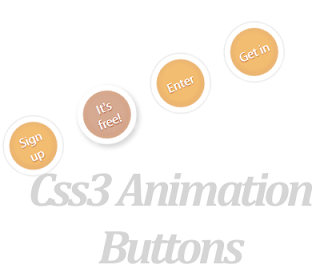
In this post, im explain, how to  add awesome animation   button  to your blog.I'm using CSS and  HTML for this    tutorial.You can   check,   demo   page by   below   link.  This is   easy to add to bloggers. Earlier buttons articles


Demo

1. Log in to blogger account and Click drop down.
blog-post-option
2. Now select "Template" Like Below.

Select-template

3. Now you can see Live on blog, Click EDIT HTML Button"

4. Now click Proceed button.

5.Find this code  by using Ctrl+F  ]]></b:skin>

6.  Paste below code Before ]]></b:skin> code

.a-btn{
    width:60px;
    height:60px;
    -webkit-border-radius:50%;
    -moz-border-radius:50%;
    border-radius:50%;
    display:block;
    margin:20px;
    float:left;
    background:#f0ad4e;
    position:relative;
    -webkit-box-shadow:0px 0px 5px 0px rgba(246, 212, 163, 0.5) inset, 0px -1px 5px 4px rgba(170, 77, 27, 0.2) inset, 0px 0px 0px 7px #fff,  0px 0px 1px 8px rgba(188, 188, 188, 0.4), 0px 0px 0px 9px #fff;
    -moz-box-shadow:0px 0px 5px 0px rgba(246, 212, 163, 0.5) inset, 0px -1px 5px 4px rgba(170, 77, 27, 0.2) inset, 0px 0px 0px 7px #fff,  0px 0px 1px 8px rgba(188, 188, 188, 0.4), 0px 0px 0px 9px #fff;
    box-shadow:0px 0px 5px 0px rgba(246, 212, 163, 0.5) inset, 0px -1px 5px 4px rgba(170, 77, 27, 0.2) inset, 0px 0px 0px 7px #fff,  0px 0px 1px 8px rgba(188, 188, 188, 0.4), 0px 0px 0px 9px #fff;
    -webkit-transition:all 0.3s linear;
    -moz-transition:all 0.3s linear;
    -o-transition:all 0.3s linear;
    transition:all 0.3s linear;
}
.a-btn span{
    display:table-cell;
    width:40px;
    height:40px;
    padding:10px;
    text-align:center;
    vertical-align:middle;
    font-size:16px;
    color:#fff;
    text-shadow:0px 1px 1px #A03F16;
    font-family:"Arvo", "Myriad Pro", "Trebuchet MS", sans-serif;
    -webkit-transition:all 0.3s linear;
    -moz-transition:all 0.3s linear;
    -o-transition:all 0.3s linear;
    transition:all 0.3s linear;
}
.a-btn span:nth-child(1), 
.a-btn span:nth-child(3){
    position:absolute;
    top:0px;
    left:0px;
    font-size:16px;
    line-height:19px;
    opacity:0;
}
.a-btn span:nth-child(1){
    background:transparent url(https://blogger.googleusercontent.com/img/b/R29vZ2xl/AVvXsEhoZx3-Cj8Q8UjZGSGzgZdyJWz9pcL3mAsT2M2wrGJkNUmGn0A0vRSSxeLhNO1-e_gaeKkUBDqNh0EyYtN_Y55J-mIP3FCs888bcMTTCHRC4E0i9YtPvPHmMynVV_Gwt6WjI89eu9MSDfY/s1600/star.png) no-repeat center center;
    opacity:0.2;
}
.a-btn:hover{
    background:rgba(170, 77, 27, 0.6);
    -webkit-box-shadow:0px 0px 5px 0px rgba(246, 212, 163, 0.5) inset, 0px -1px 5px 4px rgba(170, 77, 27, 0.2) inset, 0px 0px 0px 7px #fff,  1px 4px 5px 8px rgba(188, 188, 188, 0.6), 0px 0px 0px 9px #fff;
    -moz-box-shadow:0px 0px 5px 0px rgba(246, 212, 163, 0.5) inset, 0px -1px 5px 4px rgba(170, 77, 27, 0.2) inset, 0px 0px 0px 7px #fff,  1px 4px 5px 8px rgba(188, 188, 188, 0.6), 0px 0px 0px 9px #fff;
    box-shadow:0px 0px 5px 0px rgba(246, 212, 163, 0.5) inset, 0px -1px 5px 4px rgba(170, 77, 27, 0.2) inset, 0px 0px 0px 7px #fff,  1px 4px 5px 8px rgba(188, 188, 188, 0.6), 0px 0px 0px 9px #fff;
}
.a-btn:hover span:nth-child(3){
    opacity:1;
}
.a-btn:hover span:nth-child(2){
    opacity: 0; 
    -webkit-transform: scale(0);
    -moz-transform: scale(0);
    transform: scale(0);
}
.a-btn:hover span:nth-child(1){
    -webkit-animation:rotate 1s linear;
    -moz-animation:rotate 1s linear;
    animation:rotate 1s linear;
}
.a-btn:active{
    -webkit-box-shadow:0px 0px 5px 0px rgba(246, 212, 163, 0.5) inset, 0px -1px 5px 4px rgba(170, 77, 27, 0.2) inset, 0px 0px 0px 7px #fff,  0px -1px 0px 8px rgba(188, 188, 188, 0.3), 0px 0px 0px 10px #fff;
    -moz-box-shadow:0px 0px 5px 0px rgba(246, 212, 163, 0.5) inset, 0px -1px 5px 4px rgba(170, 77, 27, 0.2) inset, 0px 0px 0px 7px #fff,  0px -1px 0px 8px rgba(188, 188, 188, 0.3), 0px 0px 0px 10px #fff;
    box-shadow:0px 0px 5px 0px rgba(246, 212, 163, 0.5) inset, 0px -1px 5px 4px rgba(170, 77, 27, 0.2) inset, 0px 0px 0px 7px #fff,  0px -1px 0px 8px rgba(188, 188, 188, 0.3), 0px 0px 0px 10px #fff;
}
.a-btn:active span:nth-child(2){
    color:rgba(170, 77, 27, 0.8);
    text-shadow:0px 1px 1px rgba(255, 255, 255, 0.6);
}
@keyframes rotate{
    0% { transform: scale(1) rotate(0);}
    50% { transform: scale(0.5) rotate(180deg);}
    100% { transform: scale(1) rotate(360deg);}
}
@-webkit-keyframes rotate{
    0% { -webkit-transform: scale(1) rotate(0);}
    50% { -webkit-transform: scale(0.5) rotate(180deg);}
    100% { -webkit-transform: scale(1) rotate(360deg);}
}
@-moz-keyframes rotate{
    0% { -moz-transform: scale(1) rotate(0);}
    50% { -moz-transform: scale(0.5) rotate(180deg);}
    100% { -moz-transform: scale(1) rotate(360deg);}
}


7. Go to blogger  and click drop-down like  1st step and select Layout

8. Click Add Gadget and select 'HTML/Javascript"

9. Paste below code.

<div class="button-wrapper">

<a href="#" class="a-btn"><span></span>
<span>Sign up</span>
<span>It's free!</span></a>

<a href="#" class="a-btn"><span></span>
<span>Join Now</span>  
<span>It's free!</span></a>

<a href="#" class="a-btn"><span></span>
<span>Enter</span> 
<span>It's free!</span></a>

<a href="#" class="a-btn">
<span></span>
<span>Get in</span>
<span>It's free!</span></a>
</div>

 *Replace Button URL

10. Now save your template. You are done.
Read More

Friday, November 16, 2012

Add Attractive Animated CSS Buttons For Blogger

File Under: , , , No comments

Today im  gonna  explain how to add css3 stylish animated  buttons  for your blogger. you can  use
this buttons as  download   buttons, demo buttons, redirect to other page and etc.Im  using  CSS  and
H
TML for this. you can use this button code in to your blogger post too.Check my  earlier post about
Button codes here
.

Stylish+Css+buttons
Demo

1. Log in to blogger account and Click drop down.
blog-post-option
2. Now select "Template" Like Below.

Select-template

3. Now you can see Live on blog, Click EDIT HTML Button"

4. Now click Proceed button.
   
5. Find this tag by using Ctrl+F    ]]></b:skin>

6. Paste below code Before ]]></b:skin> tag

.button{
font:15px Calibri, Arial, sans-serif;
text-shadow:1px 1px 0 rgba(255,255,255,0.4);
text-decoration:none !important;
white-space:nowrap;
display:inline-block;
vertical-align:baseline;
position:relative;
cursor:pointer;
padding:10px 20px;
background-repeat:no-repeat;
background-position:bottom left;
background-image:url('https://blogger.googleusercontent.com/img/b/R29vZ2xl/AVvXsEiG5WHZqtpOBfcpfA4iOTIhUS1UoVenD9VC6bITZCx9WVhgIoA4bc0mTgT4YTWsa9WW7kkc5Y4l9QdRn7FBOxiYnDgCu6fzqFpraZhZmCnVH0jLLPhWm9w9IqzRQeKdK2GB4O8sMufHfGeI/s144/button_bg.png');
background-position:bottom left, top right, 0 0, 0 0;
background-clip:border-box;
-moz-border-radius:8px;
-webkit-border-radius:8px;
border-radius:8px;
-moz-box-shadow:0 0 1px #fff inset;
-webkit-box-shadow:0 0 1px #fff inset;
box-shadow:0 0 1px #fff inset;
-webkit-transition:background-position 1s;
-moz-transition:background-position 1s;
transition:background-position 1s;
}
.button:hover{
background-position:top left;
background-position:top left, bottom right, 0 0, 0 0;
}
.button:active{
bottom:-1px;
}
/* The three buttons sizes */
.button.big { font-size:30px;}
.button.medium { font-size:18px;}
.button.small { font-size:13px;}
/* BlueButton */
.blue.button{
color:#0f4b6d !important;
border:1px solid #84acc3 !important;
background-color: #48b5f2;
background-image: url('https://blogger.googleusercontent.com/img/b/R29vZ2xl/AVvXsEiG5WHZqtpOBfcpfA4iOTIhUS1UoVenD9VC6bITZCx9WVhgIoA4bc0mTgT4YTWsa9WW7kkc5Y4l9QdRn7FBOxiYnDgCu6fzqFpraZhZmCnVH0jLLPhWm9w9IqzRQeKdK2GB4O8sMufHfGeI/s144/button_bg.png'), url('https://blogger.googleusercontent.com/img/b/R29vZ2xl/AVvXsEiG5WHZqtpOBfcpfA4iOTIhUS1UoVenD9VC6bITZCx9WVhgIoA4bc0mTgT4YTWsa9WW7kkc5Y4l9QdRn7FBOxiYnDgCu6fzqFpraZhZmCnVH0jLLPhWm9w9IqzRQeKdK2GB4O8sMufHfGeI/s144/button_bg.png'),
-moz-radial-gradient( center bottom, circle,
rgba(89,208,244,1) 0,rgba(89,208,244,0) 100px),
-moz-linear-gradient(#4fbbf7, #3faeeb);
background-image: url('https://blogger.googleusercontent.com/img/b/R29vZ2xl/AVvXsEiG5WHZqtpOBfcpfA4iOTIhUS1UoVenD9VC6bITZCx9WVhgIoA4bc0mTgT4YTWsa9WW7kkc5Y4l9QdRn7FBOxiYnDgCu6fzqFpraZhZmCnVH0jLLPhWm9w9IqzRQeKdK2GB4O8sMufHfGeI/s144/button_bg.png'), url('https://blogger.googleusercontent.com/img/b/R29vZ2xl/AVvXsEiG5WHZqtpOBfcpfA4iOTIhUS1UoVenD9VC6bITZCx9WVhgIoA4bc0mTgT4YTWsa9WW7kkc5Y4l9QdRn7FBOxiYnDgCu6fzqFpraZhZmCnVH0jLLPhWm9w9IqzRQeKdK2GB4O8sMufHfGeI/s144/button_bg.png'),
-webkit-gradient( radial, 50% 100%, 0, 50% 100%, 100,
from(rgba(89,208,244,1)), to(rgba(89,208,244,0))),
-webkit-gradient(linear, 0% 0%, 0% 100%, from(#4fbbf7), to(#3faeeb));
}
.blue.button:hover{
background-color:#63c7fe;
background-image: url('https://blogger.googleusercontent.com/img/b/R29vZ2xl/AVvXsEiG5WHZqtpOBfcpfA4iOTIhUS1UoVenD9VC6bITZCx9WVhgIoA4bc0mTgT4YTWsa9WW7kkc5Y4l9QdRn7FBOxiYnDgCu6fzqFpraZhZmCnVH0jLLPhWm9w9IqzRQeKdK2GB4O8sMufHfGeI/s144/button_bg.png'), url('https://blogger.googleusercontent.com/img/b/R29vZ2xl/AVvXsEiG5WHZqtpOBfcpfA4iOTIhUS1UoVenD9VC6bITZCx9WVhgIoA4bc0mTgT4YTWsa9WW7kkc5Y4l9QdRn7FBOxiYnDgCu6fzqFpraZhZmCnVH0jLLPhWm9w9IqzRQeKdK2GB4O8sMufHfGeI/s144/button_bg.png'),
-moz-radial-gradient( center bottom, circle,
rgba(109,217,250,1) 0,rgba(109,217,250,0) 100px),
-moz-linear-gradient(#63c7fe, #58bef7);
background-image: url('https://blogger.googleusercontent.com/img/b/R29vZ2xl/AVvXsEiG5WHZqtpOBfcpfA4iOTIhUS1UoVenD9VC6bITZCx9WVhgIoA4bc0mTgT4YTWsa9WW7kkc5Y4l9QdRn7FBOxiYnDgCu6fzqFpraZhZmCnVH0jLLPhWm9w9IqzRQeKdK2GB4O8sMufHfGeI/s144/button_bg.png'), url('https://blogger.googleusercontent.com/img/b/R29vZ2xl/AVvXsEiG5WHZqtpOBfcpfA4iOTIhUS1UoVenD9VC6bITZCx9WVhgIoA4bc0mTgT4YTWsa9WW7kkc5Y4l9QdRn7FBOxiYnDgCu6fzqFpraZhZmCnVH0jLLPhWm9w9IqzRQeKdK2GB4O8sMufHfGeI/s144/button_bg.png'),
-webkit-gradient( radial, 50% 100%, 0, 50% 100%, 100,
from(rgba(109,217,250,1)), to(rgba(109,217,250,0))),
-webkit-gradient(linear, 0% 0%, 0% 100%, from(#63c7fe), to(#58bef7));
}
/* Green Button */
.green.button{
color:#345903 !important;
border:1px solid #96a37b !important;
background-color: #79be1e;
background-image:url('https://blogger.googleusercontent.com/img/b/R29vZ2xl/AVvXsEiG5WHZqtpOBfcpfA4iOTIhUS1UoVenD9VC6bITZCx9WVhgIoA4bc0mTgT4YTWsa9WW7kkc5Y4l9QdRn7FBOxiYnDgCu6fzqFpraZhZmCnVH0jLLPhWm9w9IqzRQeKdK2GB4O8sMufHfGeI/s144/button_bg.png'), url('https://blogger.googleusercontent.com/img/b/R29vZ2xl/AVvXsEiG5WHZqtpOBfcpfA4iOTIhUS1UoVenD9VC6bITZCx9WVhgIoA4bc0mTgT4YTWsa9WW7kkc5Y4l9QdRn7FBOxiYnDgCu6fzqFpraZhZmCnVH0jLLPhWm9w9IqzRQeKdK2GB4O8sMufHfGeI/s144/button_bg.png'), -moz-radial-gradient(center bottom, circle, rgba(162,211,30,1) 0,rgba(162,211,30,0) 100px),-moz-linear-gradient(#82cc27, #74b317);
background-image:url('https://blogger.googleusercontent.com/img/b/R29vZ2xl/AVvXsEiG5WHZqtpOBfcpfA4iOTIhUS1UoVenD9VC6bITZCx9WVhgIoA4bc0mTgT4YTWsa9WW7kkc5Y4l9QdRn7FBOxiYnDgCu6fzqFpraZhZmCnVH0jLLPhWm9w9IqzRQeKdK2GB4O8sMufHfGeI/s144/button_bg.png'), url('https://blogger.googleusercontent.com/img/b/R29vZ2xl/AVvXsEiG5WHZqtpOBfcpfA4iOTIhUS1UoVenD9VC6bITZCx9WVhgIoA4bc0mTgT4YTWsa9WW7kkc5Y4l9QdRn7FBOxiYnDgCu6fzqFpraZhZmCnVH0jLLPhWm9w9IqzRQeKdK2GB4O8sMufHfGeI/s144/button_bg.png'), -webkit-gradient(radial, 50% 100%, 0, 50% 100%, 100, from(rgba(162,211,30,1)), to(rgba(162,211,30,0))),-webkit-gradient(linear, 0% 0%, 0% 100%, from(#82cc27), to(#74b317));
}
.green.button:hover{
background-color:#89d228;
background-image:url('https://blogger.googleusercontent.com/img/b/R29vZ2xl/AVvXsEiG5WHZqtpOBfcpfA4iOTIhUS1UoVenD9VC6bITZCx9WVhgIoA4bc0mTgT4YTWsa9WW7kkc5Y4l9QdRn7FBOxiYnDgCu6fzqFpraZhZmCnVH0jLLPhWm9w9IqzRQeKdK2GB4O8sMufHfGeI/s144/button_bg.png'), url('https://blogger.googleusercontent.com/img/b/R29vZ2xl/AVvXsEiG5WHZqtpOBfcpfA4iOTIhUS1UoVenD9VC6bITZCx9WVhgIoA4bc0mTgT4YTWsa9WW7kkc5Y4l9QdRn7FBOxiYnDgCu6fzqFpraZhZmCnVH0jLLPhWm9w9IqzRQeKdK2GB4O8sMufHfGeI/s144/button_bg.png'), -moz-radial-gradient(center bottom, circle, rgba(183,229,45,1) 0,rgba(183,229,45,0) 100px),-moz-linear-gradient(#90de31, #7fc01e);
background-image:url('https://blogger.googleusercontent.com/img/b/R29vZ2xl/AVvXsEiG5WHZqtpOBfcpfA4iOTIhUS1UoVenD9VC6bITZCx9WVhgIoA4bc0mTgT4YTWsa9WW7kkc5Y4l9QdRn7FBOxiYnDgCu6fzqFpraZhZmCnVH0jLLPhWm9w9IqzRQeKdK2GB4O8sMufHfGeI/s144/button_bg.png'), url('https://blogger.googleusercontent.com/img/b/R29vZ2xl/AVvXsEiG5WHZqtpOBfcpfA4iOTIhUS1UoVenD9VC6bITZCx9WVhgIoA4bc0mTgT4YTWsa9WW7kkc5Y4l9QdRn7FBOxiYnDgCu6fzqFpraZhZmCnVH0jLLPhWm9w9IqzRQeKdK2GB4O8sMufHfGeI/s144/button_bg.png'), -webkit-gradient(radial, 50% 100%, 0, 50% 100%, 100, from(rgba(183,229,45,1)), to(rgba(183,229,45,0))),-webkit-gradient(linear, 0% 0%, 0% 100%, from(#90de31), to(#7fc01e));
}
/* Orange Button */
.orange.button{
color:#693e0a !important;
border:1px solid #bea280 !important;
background-color: #e38d27;
background-image:url('https://blogger.googleusercontent.com/img/b/R29vZ2xl/AVvXsEiG5WHZqtpOBfcpfA4iOTIhUS1UoVenD9VC6bITZCx9WVhgIoA4bc0mTgT4YTWsa9WW7kkc5Y4l9QdRn7FBOxiYnDgCu6fzqFpraZhZmCnVH0jLLPhWm9w9IqzRQeKdK2GB4O8sMufHfGeI/s144/button_bg.png'), url('https://blogger.googleusercontent.com/img/b/R29vZ2xl/AVvXsEiG5WHZqtpOBfcpfA4iOTIhUS1UoVenD9VC6bITZCx9WVhgIoA4bc0mTgT4YTWsa9WW7kkc5Y4l9QdRn7FBOxiYnDgCu6fzqFpraZhZmCnVH0jLLPhWm9w9IqzRQeKdK2GB4O8sMufHfGeI/s144/button_bg.png'), -moz-radial-gradient(center bottom, circle, rgba(232,189,45,1) 0,rgba(232,189,45,0) 100px),-moz-linear-gradient(#f1982f, #d4821f);
background-image:url('https://blogger.googleusercontent.com/img/b/R29vZ2xl/AVvXsEiG5WHZqtpOBfcpfA4iOTIhUS1UoVenD9VC6bITZCx9WVhgIoA4bc0mTgT4YTWsa9WW7kkc5Y4l9QdRn7FBOxiYnDgCu6fzqFpraZhZmCnVH0jLLPhWm9w9IqzRQeKdK2GB4O8sMufHfGeI/s144/button_bg.png'), url('https://blogger.googleusercontent.com/img/b/R29vZ2xl/AVvXsEiG5WHZqtpOBfcpfA4iOTIhUS1UoVenD9VC6bITZCx9WVhgIoA4bc0mTgT4YTWsa9WW7kkc5Y4l9QdRn7FBOxiYnDgCu6fzqFpraZhZmCnVH0jLLPhWm9w9IqzRQeKdK2GB4O8sMufHfGeI/s144/button_bg.png'), -webkit-gradient(radial, 50% 100%, 0, 50% 100%, 100, from(rgba(232,189,45,1)), to(rgba(232,189,45,0))),-webkit-gradient(linear, 0% 0%, 0% 100%, from(#f1982f), to(#d4821f));
}
.orange.button:hover{
background-color:#ec9732;
background-image:url('https://blogger.googleusercontent.com/img/b/R29vZ2xl/AVvXsEiG5WHZqtpOBfcpfA4iOTIhUS1UoVenD9VC6bITZCx9WVhgIoA4bc0mTgT4YTWsa9WW7kkc5Y4l9QdRn7FBOxiYnDgCu6fzqFpraZhZmCnVH0jLLPhWm9w9IqzRQeKdK2GB4O8sMufHfGeI/s144/button_bg.png'), url('https://blogger.googleusercontent.com/img/b/R29vZ2xl/AVvXsEiG5WHZqtpOBfcpfA4iOTIhUS1UoVenD9VC6bITZCx9WVhgIoA4bc0mTgT4YTWsa9WW7kkc5Y4l9QdRn7FBOxiYnDgCu6fzqFpraZhZmCnVH0jLLPhWm9w9IqzRQeKdK2GB4O8sMufHfGeI/s144/button_bg.png'), -moz-radial-gradient(center bottom, circle, rgba(241,192,52,1) 0,rgba(241,192,52,0) 100px),-moz-linear-gradient(#f9a746, #e18f2b);
background-image:url('https://blogger.googleusercontent.com/img/b/R29vZ2xl/AVvXsEiG5WHZqtpOBfcpfA4iOTIhUS1UoVenD9VC6bITZCx9WVhgIoA4bc0mTgT4YTWsa9WW7kkc5Y4l9QdRn7FBOxiYnDgCu6fzqFpraZhZmCnVH0jLLPhWm9w9IqzRQeKdK2GB4O8sMufHfGeI/s144/button_bg.png'), url('https://blogger.googleusercontent.com/img/b/R29vZ2xl/AVvXsEiG5WHZqtpOBfcpfA4iOTIhUS1UoVenD9VC6bITZCx9WVhgIoA4bc0mTgT4YTWsa9WW7kkc5Y4l9QdRn7FBOxiYnDgCu6fzqFpraZhZmCnVH0jLLPhWm9w9IqzRQeKdK2GB4O8sMufHfGeI/s144/button_bg.png'), -webkit-gradient(radial, 50% 100%, 0, 50% 100%, 100, from(rgba(241,192,52,1)), to(rgba(241,192,52,0))),-webkit-gradient(linear, 0% 0%, 0% 100%, from(#f9a746), to(#e18f2b));
}
/* Orange Button */
.gray.button{
color:#525252 !important;
border:1px solid #a5a5a5 !important;
background-color: #a9adb1;
background-image:url('https://blogger.googleusercontent.com/img/b/R29vZ2xl/AVvXsEiG5WHZqtpOBfcpfA4iOTIhUS1UoVenD9VC6bITZCx9WVhgIoA4bc0mTgT4YTWsa9WW7kkc5Y4l9QdRn7FBOxiYnDgCu6fzqFpraZhZmCnVH0jLLPhWm9w9IqzRQeKdK2GB4O8sMufHfGeI/s144/button_bg.png'), url('https://blogger.googleusercontent.com/img/b/R29vZ2xl/AVvXsEiG5WHZqtpOBfcpfA4iOTIhUS1UoVenD9VC6bITZCx9WVhgIoA4bc0mTgT4YTWsa9WW7kkc5Y4l9QdRn7FBOxiYnDgCu6fzqFpraZhZmCnVH0jLLPhWm9w9IqzRQeKdK2GB4O8sMufHfGeI/s144/button_bg.png'), -moz-radial-gradient(center bottom, circle, rgba(197,199,202,1) 0,rgba(197,199,202,0) 100px),-moz-linear-gradient(#c5c7ca, #92989c);
background-image:url('https://blogger.googleusercontent.com/img/b/R29vZ2xl/AVvXsEiG5WHZqtpOBfcpfA4iOTIhUS1UoVenD9VC6bITZCx9WVhgIoA4bc0mTgT4YTWsa9WW7kkc5Y4l9QdRn7FBOxiYnDgCu6fzqFpraZhZmCnVH0jLLPhWm9w9IqzRQeKdK2GB4O8sMufHfGeI/s144/button_bg.png'), url('https://blogger.googleusercontent.com/img/b/R29vZ2xl/AVvXsEiG5WHZqtpOBfcpfA4iOTIhUS1UoVenD9VC6bITZCx9WVhgIoA4bc0mTgT4YTWsa9WW7kkc5Y4l9QdRn7FBOxiYnDgCu6fzqFpraZhZmCnVH0jLLPhWm9w9IqzRQeKdK2GB4O8sMufHfGeI/s144/button_bg.png'), -webkit-gradient(radial, 50% 100%, 0, 50% 100%, 100, from(rgba(197,199,202,1)), to(rgba(197,199,202,0))),-webkit-gradient(linear, 0% 0%, 0% 100%, from(#c5c7ca), to(#92989c));
}
.gray.button:hover{
background-color:#b6bbc0;
background-image:url('https://blogger.googleusercontent.com/img/b/R29vZ2xl/AVvXsEiG5WHZqtpOBfcpfA4iOTIhUS1UoVenD9VC6bITZCx9WVhgIoA4bc0mTgT4YTWsa9WW7kkc5Y4l9QdRn7FBOxiYnDgCu6fzqFpraZhZmCnVH0jLLPhWm9w9IqzRQeKdK2GB4O8sMufHfGeI/s144/button_bg.png'), url('https://blogger.googleusercontent.com/img/b/R29vZ2xl/AVvXsEiG5WHZqtpOBfcpfA4iOTIhUS1UoVenD9VC6bITZCx9WVhgIoA4bc0mTgT4YTWsa9WW7kkc5Y4l9QdRn7FBOxiYnDgCu6fzqFpraZhZmCnVH0jLLPhWm9w9IqzRQeKdK2GB4O8sMufHfGeI/s144/button_bg.png'), -moz-radial-gradient(center bottom, circle, rgba(202,205,208,1) 0,rgba(202,205,208,0) 100px),-moz-linear-gradient(#d1d3d6, #9fa5a9);
background-image:url('https://blogger.googleusercontent.com/img/b/R29vZ2xl/AVvXsEiG5WHZqtpOBfcpfA4iOTIhUS1UoVenD9VC6bITZCx9WVhgIoA4bc0mTgT4YTWsa9WW7kkc5Y4l9QdRn7FBOxiYnDgCu6fzqFpraZhZmCnVH0jLLPhWm9w9IqzRQeKdK2GB4O8sMufHfGeI/s144/button_bg.png'), url('https://blogger.googleusercontent.com/img/b/R29vZ2xl/AVvXsEiG5WHZqtpOBfcpfA4iOTIhUS1UoVenD9VC6bITZCx9WVhgIoA4bc0mTgT4YTWsa9WW7kkc5Y4l9QdRn7FBOxiYnDgCu6fzqFpraZhZmCnVH0jLLPhWm9w9IqzRQeKdK2GB4O8sMufHfGeI/s144/button_bg.png'), -webkit-gradient(radial, 50% 100%, 0, 50% 100%, 100, from(rgba(202,205,208,1)), to(rgba(202,205,208,0))),-webkit-gradient(linear, 0% 0%, 0% 100%, from(#d1d3d6), to(#9fa5a9));
}

7. Go to blogger and click Layout

8. Click Add Gadget and select 'HTML/Javascript

9. Paste below code.

(You can use this code anywhere in your post.)
<a class="button big blue" href="Your Link" target="_blank">Live Demo</a>

<a class="button big orange" href="Your Link" target="_blank">Live Demo</a>

<a class="button big green" href="Your Link" target="_blank">Live Demo</a>

<a class="button big gray" href="Your Link" target="_blank">Live Demo</a>
Replace  with your links.

10. Now save your HTML/Javascript'.

    You are done...
Read More

Saturday, October 13, 2012

Add Animated CSS Image Labels For Blogger Part 2

File Under: , , , 9 comments

few days ago i was post   about    similar tutorial about this.This is the parrt 2 of it. you can  add this  effect   to  your sidebar image or post images like earlier Im using CSS and  HTML for this tutorial.I added demo link. so you   can check   it    before  apply to your blog.Get my earlier image
effects posts here.


label-image


Demo

1. Log in to blogger account and Click drop down.
blog-post-option
2. Now select "Template" Like Below.

Select-template

3. Now you can see Live on blog, Click EDIT HTML Button"

4. Now click Proceed button.

5.Find this code  by using Ctrl+F  ]]></b:skin>

6.  Paste below code Before ]]></b:skin> code

/* Bloggertrix  */
.label { 
 /*Position*/
 overflow: hidden;
 position: relative;
 margin: 20px;
 display: inline-block;
 vertical-align: top;
 
 /*Skin*/
 border: 7px solid #fff;
 -webkit-box-shadow: 0px 2px 4px rgba(0,0,0,0.5), 0px 10px 7px rgba(0,0,0,0.2);
 -moz-box-shadow: 0px 2px 4px rgba(0,0,0,0.5), 0px 10px 7px rgba(0,0,0,0.2);
 box-shadow: 0px 2px 4px rgba(0,0,0,0.5), 0px 10px 7px rgba(0,0,0,0.2);
}
.label img {
 display: block;
}
.label p {
 /*Position*/
 position: absolute;
 padding: 10px;
 width: 100%;
 
 /*Skin*/
 background: #000; /*fallback*/
 background: rgba(0,0,0,0.7);
 color: #fff;
 font: bold italic 18px/1.5 Helvtica, Verdana, sans-serif;
 
 /*Animation*/
 -webkit-transition: all 0.5s ease;
 -moz-transition: all 0.5s ease;
 -o-transition: all 0.5s ease;
 -ms-transition: all 0.5s ease;
 transition: all 0.5s ease;
}
/*Top In Bounds*/
.top:hover p, .topleft p, .topright p {
 top: 0%;
}
/*Top Out of Bounds*/
.top p, .centertop p {
 top: -50%;
}

/*Bottom In Bounds*/
.bottom:hover p, .bottomleft p, .bottomright p {
 bottom: 0%;
}
/*Bottom Out of Bounds*/
.bottom p, .centerbottom p {
 bottom: -50%;
}
/*Left In Bounds*/
.bottomleft:hover p, .bottomright:hover p, .topleft:hover p, .topright:hover p, .centerleft:hover p, .centerright:hover p {
 left: 0%;
}

/*Left Out of Bounds*/
.bottomleft p, .topleft p, .centerleft p, .centerleft p {
 left: -150%;
}

/*Right Out of Bounds 150%*/
.bottomright p, .topright p, .centerright p {
 left: 150%;
}

/*Centered From Bottom*/
.centerbottom:hover p {
 bottom: 50%;
}

/*Centered From Top*/
.centertop:hover p, .centerleft p, .centerright p {
 top: 50%;
}

/*Center Margin Fixes*/
.centertop:hover p, .centerleft p, .centerright p {
 margin-top: -20px;
}

.centerbottom:hover p {
 margin-bottom: -20px;
}

7. Go to blogger  and click drop-down like  1st step and select Layout

8. Click Add Gadget and select 'HTML/Javascript"

9. Paste below code.

<div class="label topright">
   <p>Image Title</p>
<a href="Link URL" target="_blank">
   <img src="Image URL 1" /></a>
 </div>

 <div class="label centertop">
   <p>Image Title</p>
<a href="Link URL" target="_blank">
   <img src="Image URL 2" /></a>
 </div>
 
 <div class="label centerbottom">
   <p>Image Title</p>
<a href="Link URL" target="_blank">
   <img src="Image URL 3" /></a>
 </div>
 
 <div class="label centerleft">
   <p>Image Title</p>
<a href="Link URL" target="_blank">
   <img src="Image URL 4" /></a>
 </div>
 
 <div class="label centerright">
   <p>Image Title</p>
<a href="Link URL" target="_blank">
   <img src="Image URL 5" /></a>
 </div>
 *ReplaceURLs as your like.

10. Now save "HTML/Javascript". You are done.
Read More

Wednesday, October 10, 2012

Add Animated CSS Image Labels For Blogger

File Under: , , , 5 comments

In this post im going to  explain,  how to add animated labels for your images. you can add this effect to your sidebar image or post images.Im using CSS and  HTML for this tutorial.I added demo link. so you can check it before   apply    to your blog. Get my earlier image effects posts here.

Demo

1. Log in to blogger account and Click drop down.
blog-post-option
2. Now select "Template" Like Below.

Select-template

3. Now you can see Live on blog, Click EDIT HTML Button"

4. Now click Proceed button.

5.Find this code  by using Ctrl+F  ]]></b:skin>

6.  Paste below code Before ]]></b:skin> code

/* Bloggertrix  */
.label { 
 /*Position*/
 overflow: hidden;
 position: relative;
 margin: 20px;
 display: inline-block;
 vertical-align: top;
 
 /*Skin*/
 border: 7px solid #fff;
 -webkit-box-shadow: 0px 2px 4px rgba(0,0,0,0.5), 0px 10px 7px rgba(0,0,0,0.2);
 -moz-box-shadow: 0px 2px 4px rgba(0,0,0,0.5), 0px 10px 7px rgba(0,0,0,0.2);
 box-shadow: 0px 2px 4px rgba(0,0,0,0.5), 0px 10px 7px rgba(0,0,0,0.2);
}
.label img {
 display: block;
}
.label p {
 /*Position*/
 position: absolute;
 padding: 10px;
 width: 100%;
 
 /*Skin*/
 background: #000; /*fallback*/
 background: rgba(0,0,0,0.7);
 color: #fff;
 font: bold italic 18px/1.5 Helvtica, Verdana, sans-serif;
 
 /*Animation*/
 -webkit-transition: all 0.5s ease;
 -moz-transition: all 0.5s ease;
 -o-transition: all 0.5s ease;
 -ms-transition: all 0.5s ease;
 transition: all 0.5s ease;
}
/*Top In Bounds*/
.top:hover p, .topleft p, .topright p {
 top: 0%;
}
/*Top Out of Bounds*/
.top p, .centertop p {
 top: -50%;
}

/*Bottom In Bounds*/
.bottom:hover p, .bottomleft p, .bottomright p {
 bottom: 0%;
}
/*Bottom Out of Bounds*/
.bottom p, .centerbottom p {
 bottom: -50%;
}
/*Left In Bounds*/
.bottomleft:hover p, .bottomright:hover p, .topleft:hover p, .topright:hover p, .centerleft:hover p, .centerright:hover p {
 left: 0%;
}

/*Left Out of Bounds*/
.bottomleft p, .topleft p, .centerleft p, .centerleft p {
 left: -150%;
}

/*Right Out of Bounds 150%*/
.bottomright p, .topright p, .centerright p {
 left: 150%;
}

/*Centered From Bottom*/
.centerbottom:hover p {
 bottom: 50%;
}

/*Centered From Top*/
.centertop:hover p, .centerleft p, .centerright p {
 top: 50%;
}

/*Center Margin Fixes*/
.centertop:hover p, .centerleft p, .centerright p {
 margin-top: -20px;
}

.centerbottom:hover p {
 margin-bottom: -20px;
}

7. Go to blogger  and click drop-down like  1st step and select Layout

8. Click Add Gadget and select 'HTML/Javascript"

9. Paste below code.

<div class="label top">
   <p>Your Title</p>
   <img src="Image URL 1" />
 </div>
 
 <div class="label bottom">
   <p>Your Title</p>
   <img src="Image URL 2" />
 </div>
 
 <div class="label bottomright">
   <p>Your Title</p>
   <img src="Image URL 3" />
 </div>
 
 <div class="label bottomleft">
   <p>Your Title</p>
   <img src="Image URL 4" />
 </div>
 <div class="label topleft">
   <p>Your Title</p>
   <img src="Image URL 5" />
 </div>
 *ReplaceURLs as your like.

10. Now save "HTML/Javascript". You are done.
Read More