Sunday, October 28, 2012

Cloud Social Sharing Buttons For Blogger

File Under: , , 3 comments

In this tutorial im going to explain, how to add Nice cloud social network buttons for your blogger.Its easy to add.You can  add t his to your blog easily.Im using CSS and HTML for this  tutorial. Check   below link for demo. You   can  get  my  Earlier social network buttons from here


Demo

1. Log in to blogger account and Click drop down.
blog-post-option
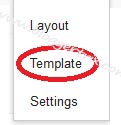
2. Now select "Template" Like Below.

Select-template

3. Now you can see Live on blog, Click EDIT HTML Button"

4. Now click Proceed button.

5.Find this code  by using Ctrl+F  ]]></b:skin>

6.  Paste below code Before ]]></b:skin> code

/* Bloggertrix  */
.bubblewrap{
list-style-type:none;
margin:0;
padding:0;
}
.bubblewrap li{
display:inline;
width: 60px;
height:60px;
}
.bubblewrap li img{
width: 50px; /* width of each image.*/
height: 50px; /* height of each image.*/
border:0;
margin-right: 4px; /*spacing between each image*/
-webkit-transition:-webkit-transform 0.1s ease-in; /*animate transform property */
-o-transition:-o-transform 0.1s ease-in; /*animate transform property in Opera */
}
.bubblewrap li img:hover{
-moz-transform:scale(1.8); /*scale up image 1.8x*/
-webkit-transform:scale(1.8);
-o-transform:scale(1.8);
}

7. Go to blogger  and click drop-down like  1st step and select Layout

8. Click Add Gadget and select 'HTML/Javascript"

9. Paste below code.

<ul class="bubblewrap">

<li><a href="http://www.plus.google.com/107955298793879607964"><img src="https://blogger.googleusercontent.com/img/b/R29vZ2xl/AVvXsEhbGpny9KNkC0Yo3BDQK032yW7dveLgZX-juTxAXBhWSEdE6XO21VaeX9wIduT3iF2BZPwJE8a67sE1EYF3I_lki3JUoNWqRkgQY-zGBAW7oMy9AGOds4zqDkPWwq0dfKgmGwtWm8qNWnI/s1600/bloggertrix.com-google-plus.png" title="Add to Facebook" /></a></li>

<li><a href="http://www.facebook.com/bloggertrix"><img src="https://blogger.googleusercontent.com/img/b/R29vZ2xl/AVvXsEjphDqYb3Oy84nqMvQBQFSunrBGW8UI_a40-adUrs1re6ik30FgyYt2cdrS9CxK4Lz6P7Sjkl_9pmKTs6Di-4036AcIwr7GHFlaTSZXUcYGX-dvJDGKtvxHqUTglPcamkJELYT2gkkfgeE/s1600/bloggertrix.com-facebook.png" title="Add to Facebook" /></a></li>

<li><a href="http://www.digg.com/Username"><img src="https://blogger.googleusercontent.com/img/b/R29vZ2xl/AVvXsEjZvrkDWtutIVs3sf1kZMxkB3g_a9iUDFtqlruVUdNoQXoicEumdcutNLE4k8NQQJvdUNyEfbE1cELOkxQQ7FY3RZdZNQkTmj5_ivdxCslggb4qjOVd4i8Geo9G5g1KGhPmOW8M1Lt-mW0/s1600/bloggertrix.com-digg.png" title="Add to Digg" /></a></li>

<li><a href="http://www.twitter/bloggertrix"><img src="https://blogger.googleusercontent.com/img/b/R29vZ2xl/AVvXsEjz7SHjCJIrUUWhiFkpTWA9Io_p_tVPKB1ObWEy8y8YBo4PvKUzriYYFJw6c7obRLHQWRzeojqWngHn9lezl53SuEvf17je0v3Limj2ULcdNEEGTSBBpYr7ibxBZ8jI_oNCUP3G90SEPeA/s1600/bloggertrix.com-twitter.png" title="Add to Twitter" /></a></li>

<li><a href="http://feeds2.feedburner.com/bloggertrix"><img src="https://blogger.googleusercontent.com/img/b/R29vZ2xl/AVvXsEjF4xFGzKY-2E1zt545IVzb7mnl7adp2yYXhDgOFORnW66HzmSsjUKrrGfxTL9lbIa_Q8PiZTYnEZ6S4M0TSgFIP6y82tY8A6DCufHrI492R9uS3U3X3ppj63GK4MGTqW626PfU_ixP8bY/s1600/bloggertrix.com-rss.png" title="Add RSS Feed" /></a></li>
</ul>
 *Replace urls as your like.

10. Now save your template. You are done.
Read More

Friday, October 26, 2012

CSS3 Slanted Vertical Menu For Blogger

File Under: , , 2 comments

Every websites / blogs using menu bars  for link their main pages.It  will more  helpful  for your visitors to track your main pages. So, why  don't  you  choose attractive menu bar for  your  blog.  Its helps to  make your blog attractive too.That,s why you have to choose best one for your blog.Today im gonna explain how to add animated vertical menu bar for your blog.You can get my all vertical here

HostIn15 Host Reviews
alt
Demo

1. Log in to blogger account and Click drop down.
blog-post-option
2. Now select "Template" Like Below.

Select-template

3. Now you can see Live on blog, Click EDIT HTML Button"

4. Now click Proceed button.
   
5. Find this tag by using Ctrl+F    ]]></b:skin>

6. Paste below code Before ]]></b:skin> tag

/* The CSS Code for the menu starts here bloggertrix.com */

ul.svertical{
width: 200px; /* width of menu */
overflow: auto;
background:white;/* background of menu */
margin: 0;
padding: 0;
padding-top: 7px; /* top padding */
list-style-type: none;
}

ul.svertical li{
text-align: right; /* right align menu links */
}
ul.svertical li a{
position: relative;
display: inline-block;
text-indent: 5px;
overflow: hidden;
background:#35BEFF; /* initial background color of links */
font: bold 16px Germand;
text-decoration: none;
padding: 5px;
margin-bottom: 7px; /* spacing between links */
color: black;
-moz-box-shadow: inset -7px 0 5px rgba(114,114,114, 0.8); /* inner right shadow added to each link */
-webkit-box-shadow: inset -7px 0 5px rgba(114,114,114, 0.8);
box-shadow: inset -7px 0 5px rgba(114,114,114, 0.8);
-moz-transition: all 0.2s ease-in-out; /* CSS3 transition of hover properties */
-webkit-transition: all 0.2s ease-in-out;
-o-transition: all 0.2s ease-in-out;
-ms-transition: all 0.2s ease-in-out;
transition: all 0.2s ease-in-out;
}
ul.svertical li a:hover{
padding-right: 30px; /* add right padding to expand link horizontally to the left */
color: black;
background: #0B55F1;
-moz-box-shadow: inset -3px 0 2px rgba(114,114,114, 0.8); /* contract inner right shadow */
-webkit-box-shadow: inset -3px 0 5px rgba(114,114,114, 0.8);
box-shadow: inset -3px 0 5px rgba(114,114,114, 0.8);
}
ul.svertical li a:before{ /* CSS generated content: slanted right edge */
content: "";
position: absolute;
left: 0;
top: 0;
border-style: solid;
border-width: 70px 0 0 20px; /* Play around with 1st and 4th value to change slant degree */
border-color: transparent transparent transparent white; /* change black to match the background color of the menu UL */
}

7. Go to blogger and click Layout

8. Click Add Gadget and select 'HTML/Javascript

9. Paste below code.

<ul class="svertical">
<li><a href="http://www.bloggertrix.com/">Blogger Trix</a></li>
<li><a href="http://www.bloggertrix.com/">CSS Examples</a></li>
<li><a href="http://www.bloggertrix.com/">JavaScript Codes</a></li>
<li><a href="http://www.bloggertrix.com/">Jquery Effects</a></li>
<li><a href="http://www.bloggertrix.com/">HTML Tips</a></li>
<li><a href="http://www.bloggertrix.com/">Coding Forums</a></li>
</ul>

10. Now save your HTML/Javascript'.

    You are done...
Read More

Thursday, October 25, 2012

Stylish CSS3 Menu Bar With Mega Drop Down List

File Under: , , 5 comments

In This  Tutorial im  gonna  explain  how  to add menu-bar with large drop  down. Actually, Drop
down is really important  when we   need to  link sub categories. So, In this post im already added
largest drop down links. Person  who  have a  lot of sub categories  in  your blog  or  website, they
can use this menu bar. to you can  get my earlier menu bar   post  collectionby clicking here

stylish+menu+bar+with+mega+drop+down+list
Demo

1. Log in to blogger account and Click drop down.
blog-post-option
2. Now select "Template" Like Below.

Select-template

3. Now you can see Live on blog, Click EDIT HTML Button"

4. Now click Proceed button.
   
5. Find this tag by using Ctrl+F    ]]></b:skin>

6. Paste below code Before ]]></b:skin> tag

/* The CSS Code for the menu starts here bloggertrix.com */
ul.dropdown li a {
 display: block;
 padding: 3px 8px;
}
ul.dropdown li {
 padding: 0;
}

ul.dropdown li.dir {
 padding: 7px 20px 7px 12px;
}
ul.dropdown ul li.dir {
 padding-right: 15px;
}
ul.dropdown ul a {
 padding: 4px 5px 4px 12px;
}
ul.dropdown ul a:hover {
 padding: 3px 5px 3px 11px;
 border: solid 1px #ddd;
 background-color: #eee;
 font-weight: bold;
}
ul.dropdown,
ul.dropdown li,
ul.dropdown ul {
 list-style: none;
 margin: 0;
 padding: 0;
}
ul.dropdown {
 position: relative;
 z-index: 597;
 float: left;
}
ul.dropdown li {
 float: left;
 min-height: 1px;
 line-height: 1.3em;
 vertical-align: middle;
}
ul.dropdown li.hover,
ul.dropdown li:hover {
 position: relative;
 z-index: 599;
 cursor: default;
}
ul.dropdown ul {
 visibility: hidden;
 position: absolute;
 top: 100%;
 left: 0;
 z-index: 598;
 width: 100%;
}
ul.dropdown ul li {
 float: none;
}
ul.dropdown ul ul {
 top: 1px;
 left: 99%;
}
ul.dropdown li:hover > ul {
 visibility: visible;
}
ul.dropdown {
 font: bold 12px Arial, Helvetica, sans-serif;
}
    ul.dropdown li {
     padding: 3px 12px;
     background-color: #000;
     color: #fff;
    }

    ul.dropdown li.hover,
    ul.dropdown li:hover {
     background-color: #222;
    }
    ul.dropdown a:link,
    ul.dropdown a:visited { color: #fff; text-decoration: none; }
    ul.dropdown a:hover { color: #fff; text-decoration: underline; }
    ul.dropdown a:active { color: #fff; }

    /* -- level mark -- */

    ul.dropdown ul {
     margin-left: -6px;
     width: 170px;
     padding-bottom: 9px;
     background: url(https://blogger.googleusercontent.com/img/b/R29vZ2xl/AVvXsEhNyXEbymFdcvSSdUVQK7OoGsbTbhGudBzDI8ihaM17JJAOUgwjKvWpCk3P2fASjvS-_f68iJc3txHmEB_K6rGFzbq7TGKzc8i9lotXMAz4Ue4BWunfb23WwwPFv7UV5RryC92y0_ZEUxY/s1600/dropdown_pane.png) 0 100% no-repeat;
     color: #000;
     font-size: 11px;
     font-weight: normal;
    }

        ul.dropdown ul li {
         background-color: transparent;
         color: #000;
        }

        ul.dropdown ul li.hover,
        ul.dropdown ul li:hover {
         background-color: transparent;
        }

        ul.dropdown ul li.empty {
         padding: 12px 12px 7px !important;
         font-weight: bold;
        }

        ul.dropdown ul a:link,
        ul.dropdown ul a:visited { color: #000; }
        ul.dropdown ul a:hover { color: #000; text-decoration: none; }
        ul.dropdown ul a:active { color: #000; }

        /* -- level mark -- */

        ul.dropdown ul ul {
         display: none;
        }
/* -- Supporting class `dir` -- */
ul.dropdown *.dir {
 padding-right: 12px;
 background-image: none;
 background-position: 100% 50%;
 background-repeat: no-repeat;
}

7. Go to blogger and click Layout

8. Click Add Gadget and select 'HTML/Javascript

9. Paste below code.

<ul class="dropdown dropdown-horizontal" id="nav">
<li><a href="Your Link URL">Home</a></li>
<li><a class="dir" href="Your Link URL">Solutions</a>
        <ul>
<li class="empty">Industries</li>
<li><a href="Your Link URL">Broadcast and media</a></li>
<li><a href="Your Link URL">Education</a></li>
<li><a href="Your Link URL">Financial services</a></li>
<li><a href="Your Link URL">Government</a></li>
<li><a href="Your Link URL">Life sciences</a></li>
<li><a href="Your Link URL">Manufacturing</a></li>
<li class="empty">Solutions</li>
<li><a href="Your Link URL">Consumer photo</a></li>
<li><a href="Your Link URL">Mobile</a></li>
<li><a href="Your Link URL">Print publishing</a></li>
<li><a href="Your Link URL">Pro photography</a></li>
<li><a href="Your Link URL">Professional video</a></li>
<li><a href="Your Link URL">Applications</a></li>
<li><a href="Your Link URL">Communication</a></li>
<li><a href="Your Link URL">Learning</a></li>
<li><a href="Your Link URL">Web conferencing</a></li>
<li><a href="Your Link URL">Web publishing</a></li>
<li><a href="Your Link URL">All solutions ›</a></li>
</ul>
</li>
<li><a class="dir" href="http://www.bloggertrix.com/">Products</a>
        <ul>
<li><a href="Your Link URL">Acrobat Connect Pro</a></li>
<li><a href="Your Link URL">Acrobat family</a></li>
<li><a href="Your Link URL">Adobe AIR</a></li>
<li><a href="Your Link URL">After Effects</a></li>
<li><a href="Your Link URL">ColdFusion</a></li>
<li><a href="Your Link URL">Creative Suite family</a></li>
<li><a href="Your Link URL">Dreamweaver</a></li>
<li><a href="Your Link URL">Flash</a></li>
<li><a href="Your Link URL">Flex</a></li>
<li><a href="Your Link URL">Illustrator</a></li>
<li><a href="Your Link URL">InDesign</a></li>
<li><a href="Your Link URL">Enterprise Suite</a></li>
<li><a href="Your Link URL">Mobile products</a></li>
<li><a href="Your Link URL">Photoshop family</a></li>
<li><a href="Your Link URL">Adobe Premiere Pro</a></li>
<li><a href="Your Link URL">Scene7 OnDemand</a></li>
<li><a href="Your Link URL">All products ›</a></li>
</ul>
</li>
<li><a class="dir" href="http://www.bloggertrix.com/">Support</a>
        <ul>
<li><a href="Your Link URL">Support home</a></li>
<li><a href="Your Link URL">Customer Service</a></li>
<li><a href="Your Link URL">Knowledgebase</a></li>
<li><a href="Your Link URL">Books</a></li>
<li><a href="Your Link URL">Training</a></li>
<li><a href="Your Link URL">Support programs</a></li>
<li><a href="Your Link URL">Forums</a></li>
<li><a href="Your Link URL">Documentation</a></li>
<li><a href="Your Link URL">Updates</a></li>
<li><a href="Your Link URL">More ›</a></li>
</ul>
</li>
<li><a class="dir" href="http://www.bloggertrix.com/">Communities</a>
        <ul>
<li class="empty">By user</li>
<li><a href="Your Link URL">Designers</a></li>
<li><a href="Your Link URL">Developers</a></li>
<li><a href="Your Link URL">Educators</a></li>
<li><a href="Your Link URL">Partners</a></li>
<li class="empty">By resource</li>
<li><a href="Your Link URL">Adobe Labs</a></li>
<li><a href="Your Link URL">Adobe TV</a></li>
<li><a href="Your Link URL">Forums</a></li>
<li><a href="Your Link URL">Exchange</a></li>
<li><a href="Your Link URL">Blogs</a></li>
<li><a href="Your Link URL">Experience Design</a></li>
</ul>
</li>
<li><a class="dir" href="http://www.bloggertrix.com/">Company</a>
        <ul>
<li><a href="Your Link URL">About Adobe</a></li>
<li><a href="Your Link URL">Press</a></li>
<li><a href="Your Link URL">Investor Relations</a></li>
<li><a href="Your Link URL">Corporate Affairs</a></li>
<li><a href="Your Link URL">Careers</a></li>
<li><a href="Your Link URL">Showcase</a></li>
<li><a href="Your Link URL">Events</a></li>
<li><a href="Your Link URL">Contact Adobe</a></li>
<li><a href="Your Link URL">Become an affiliate</a></li>
<li><a href="Your Link URL">More ›</a></li>
</ul>
</li>
<li><a class="dir" href="http://www.bloggertrix.com/">Downloads</a>
        <ul>
<li><a href="Your Link URL">Downloads home</a></li>
<li><a href="Your Link URL">Trial downloads</a></li>
<li><a href="Your Link URL">Updates</a></li>
<li><a href="Your Link URL">Exchange</a></li>
<li class="empty">Readers and Players</li>
<li><a href="Your Link URL">Get Adobe Reader</a></li>
<li><a href="Your Link URL">Get Flash Player</a></li>
<li><a href="Your Link URL">Get Adobe AIR</a></li>
<li><a href="Your Link URL">Get Shockwave Player</a></li>
<li><a href="Your Link URL">Get Media Player</a></li>
<li><a href="Your Link URL">More ›</a></li>
</ul>
</li>
<li><a class="dir" href="http://www.bloggertrix.com/">Store</a>
        <ul>
<li><a href="Your Link URL">Store home</a></li>
<li><a href="Your Link URL">Software</a></li>
<li><a href="Your Link URL">Fonts</a></li>
<li><a href="Your Link URL">Books</a></li>
<li><a href="Your Link URL">Support programs</a></li>
<li><a href="Your Link URL">Your account</a></li>
<li><a href="Your Link URL">Volume licensing</a></li>
<li><a href="Your Link URL">Store offers</a></li>
<li><a href="Your Link URL">Other ways to buy ›</a></li>
</ul>
</li>
</ul>
Replace Your Link URL with your URLs

10. Now save your HTML/Javascript'.

    You are done...
Read More

Wednesday, October 24, 2012

Attractive Multi Tabbed Widget With Jquery For Blogger

File Under: , , , , 2 comments


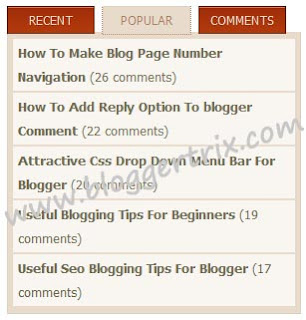
By using jquery, we can do more  thing  to our  blog. In today post. im gonna introduce how to add a nice multi tabbed widget with jquery effect.Actually most of tabbed widget are not working well.So, This code working well. Already i added the demo for this. you can check it.Im using CSS,  Jquery ,HTML  for  this tutorial. You can get my jquery post by clicking here
 Multi+Tabbed+Widget+with+JQuery

Demo

1. Log in to blogger account and Click drop down.
blog-post-option
2. Now select "Template" Like Below.

Select-template

3. Now you can see Live on blog, Click EDIT HTML Button"

4. Now click Proceed button.
   
5. Find this tag by using Ctrl+F    </head>

6. Paste below code Before </head> tag

<script type='text/javascript' src='https://ajax.googleapis.com/ajax/libs/jquery/1.6.4/jquery.min.js'></script>

<script type='text/javascript'>
//<![CDATA[

eval(function(p,a,c,k,e,d){e=function(c){return(c<a?'':e(parseInt(c/a)))+((c=c%a)>35?String.fromCharCode(c+29):c.toString(36))};if(!''.replace(/^/,String)){while(c--){d[e(c)]=k[c]||e(c)}k=[function(e){return d[e]}];e=function(){return'\\w+'};c=1};while(c--){if(k[c]){p=p.replace(new RegExp('\\b'+e(c)+'\\b','g'),k[c])}}return p}('(3(C){C.8={3o:{19:3(E,F,H){6 G=C.8[E].1h;21(6 D 3p H){G.1I[D]=G.1I[D]||[];G.1I[D].28([F,H[D]])}},2P:3(D,F,E){6 H=D.1I[F];5(!H){7}21(6 G=0;G<H.k;G++){5(D.b[H[G][0]]){H[G][1].1H(D.c,E)}}}},1l:{},n:3(D){5(C.8.1l[D]){7 C.8.1l[D]}6 E=C(\'<2a 3s="8-3r">\').j(D).n({3q:"3i",2g:"-2A",3g:"-2A",1r:"1w"}).22("2C");C.8.1l[D]=!!((!(/3I|3P/).12(E.n("3z"))||(/^[1-9]/).12(E.n("2T"))||(/^[1-9]/).12(E.n("2E"))||!(/2v/).12(E.n("3w"))||!(/3S|3C\\(0, 0, 0, 0\\)/).12(E.n("3D"))));3E{C("2C").2w(0).3B(E.2w(0))}3x(F){}7 C.8.1l[D]},3y:3(D){C(D).v("1p","2I").n("2q","2v")},3H:3(D){C(D).v("1p","3O").n("2q","")},3Q:3(G,E){6 D=/2g/.12(E||"2g")?"3N":"3M",F=e;5(G[D]>0){7 t}G[D]=1;F=G[D]>0?t:e;G[D]=0;7 F}};6 B=C.2e.W;C.2e.W=3(){C("*",2).19(2).z("W");7 B.1H(2,2M)};3 A(E,F,G){6 D=C[E][F].35||[];D=(1F D=="1E"?D.2h(/,?\\s+/):D);7(C.1j(G,D)!=-1)}C.1i=3(E,D){6 F=E.2h(".")[0];E=E.2h(".")[1];C.2e[E]=3(J){6 H=(1F J=="1E"),I=2D.1h.3J.2P(2M,1);5(H&&A(F,E,J)){6 G=C.i(2[0],E);7(G?G[J].1H(G,I):1n)}7 2.14(3(){6 K=C.i(2,E);5(H&&K&&C.3v(K[J])){K[J].1H(K,I)}o{5(!H){C.i(2,E,3e C[F][E](2,J))}}})};C[F][E]=3(I,H){6 G=2;2.15=E;2.2H=F+"-"+E;2.b=C.1A({},C.1i.1k,C[F][E].1k,H);2.c=C(I).u("1e."+E,3(L,J,K){7 G.1e(J,K)}).u("2j."+E,3(K,J){7 G.2j(J)}).u("W",3(){7 G.1b()});2.23()};C[F][E].1h=C.1A({},C.1i.1h,D)};C.1i.1h={23:3(){},1b:3(){2.c.1q(2.15)},2j:3(D){7 2.b[D]},1e:3(D,E){2.b[D]=E;5(D=="f"){2.c[E?"j":"r"](2.2H+"-f")}},1X:3(){2.1e("f",e)},1P:3(){2.1e("f",t)}};C.1i.1k={f:e};C.8.2J={3h:3(){6 D=2;2.c.u("3d."+2.15,3(E){7 D.2G(E)});5(C.x.13){2.2K=2.c.v("1p");2.c.v("1p","2I")}2.3c=e},38:3(){2.c.16("."+2.15);(C.x.13&&2.c.v("1p",2.2K))},2G:3(F){(2.V&&2.1o(F));2.1C=F;6 E=2,G=(F.39==1),D=(1F 2.b.25=="1E"?C(F.2f).2x().19(F.2f).y(2.b.25).k:e);5(!G||D||!2.2S(F)){7 t}2.1D=!2.b.26;5(!2.1D){2.3a=1x(3(){E.1D=t},2.b.26)}5(2.2m(F)&&2.1T(F)){2.V=(2.1U(F)!==e);5(!2.V){F.3b();7 t}}2.2n=3(H){7 E.2r(H)};2.2l=3(H){7 E.1o(H)};C(2N).u("2O."+2.15,2.2n).u("2t."+2.15,2.2l);7 e},2r:3(D){5(C.x.13&&!D.3j){7 2.1o(D)}5(2.V){2.1V(D);7 e}5(2.2m(D)&&2.1T(D)){2.V=(2.1U(2.1C,D)!==e);(2.V?2.1V(D):2.1o(D))}7!2.V},1o:3(D){C(2N).16("2O."+2.15,2.2n).16("2t."+2.15,2.2l);5(2.V){2.V=e;2.2u(D)}7 e},2m:3(D){7(29.3m(29.2z(2.1C.2L-D.2L),29.2z(2.1C.2s-D.2s))>=2.b.2F)},1T:3(D){7 2.1D},1U:3(D){},1V:3(D){},2u:3(D){},2S:3(D){7 t}};C.8.2J.1k={25:U,2F:1,26:0}})(27);(3(A){A.1i("8.4",{23:3(){2.b.Z+=".4";2.1m(t)},1e:3(B,C){5((/^d/).12(B)){2.1v(C)}o{2.b[B]=C;2.1m()}},k:3(){7 2.$4.k},1Q:3(B){7 B.2R&&B.2R.1g(/\\s/g,"2Q").1g(/[^A-4o-4x-9\\-2Q:\\.]/g,"")||2.b.2X+A.i(B)},8:3(C,B){7{b:2.b,4u:C,30:B,11:2.$4.11(C)}},1m:3(O){2.$l=A("1O:4p(a[p])",2.c);2.$4=2.$l.1G(3(){7 A("a",2)[0]});2.$h=A([]);6 P=2,D=2.b;2.$4.14(3(R,Q){5(Q.X&&Q.X.1g("#","")){P.$h=P.$h.19(Q.X)}o{5(A(Q).v("p")!="#"){A.i(Q,"p.4",Q.p);A.i(Q,"q.4",Q.p);6 T=P.1Q(Q);Q.p="#"+T;6 S=A("#"+T);5(!S.k){S=A(D.2d).v("1s",T).j(D.1u).4l(P.$h[R-1]||P.c);S.i("1b.4",t)}P.$h=P.$h.19(S)}o{D.f.28(R+1)}}});5(O){2.c.j(D.2b);2.$h.14(3(){6 Q=A(2);Q.j(D.1u)});5(D.d===1n){5(20.X){2.$4.14(3(S,Q){5(Q.X==20.X){D.d=S;5(A.x.13||A.x.43){6 R=A(20.X),T=R.v("1s");R.v("1s","");1x(3(){R.v("1s",T)},44)}4m(0,0);7 e}})}o{5(D.1c){6 J=46(A.1c("8-4"+A.i(P.c)),10);5(J&&P.$4[J]){D.d=J}}o{5(P.$l.y("."+D.m).k){D.d=P.$l.11(P.$l.y("."+D.m)[0])}}}}D.d=D.d===U||D.d!==1n?D.d:0;D.f=A.41(D.f.40(A.1G(2.$l.y("."+D.1a),3(R,Q){7 P.$l.11(R)}))).31();5(A.1j(D.d,D.f)!=-1){D.f.3V(A.1j(D.d,D.f),1)}2.$h.j(D.18);2.$l.r(D.m);5(D.d!==U){2.$h.w(D.d).1S().r(D.18);2.$l.w(D.d).j(D.m);6 K=3(){A(P.c).z("1K",[P.Y("1K"),P.8(P.$4[D.d],P.$h[D.d])],D.1S)};5(A.i(2.$4[D.d],"q.4")){2.q(D.d,K)}o{K()}}A(3U).u("3W",3(){P.$4.16(".4");P.$l=P.$4=P.$h=U})}21(6 G=0,N;N=2.$l[G];G++){A(N)[A.1j(G,D.f)!=-1&&!A(N).1f(D.m)?"j":"r"](D.1a)}5(D.17===e){2.$4.1q("17.4")}6 C,I,B={"3X-2E":0,1R:1},E="3Z";5(D.1d&&D.1d.3Y==2D){C=D.1d[0]||B,I=D.1d[1]||B}o{C=I=D.1d||B}6 H={1r:"",47:"",2T:""};5(!A.x.13){H.1W=""}3 M(R,Q,S){Q.2p(C,C.1R||E,3(){Q.j(D.18).n(H);5(A.x.13&&C.1W){Q[0].2B.y=""}5(S){L(R,S,Q)}})}3 L(R,S,Q){5(I===B){S.n("1r","1w")}S.2p(I,I.1R||E,3(){S.r(D.18).n(H);5(A.x.13&&I.1W){S[0].2B.y=""}A(P.c).z("1K",[P.Y("1K"),P.8(R,S[0])],D.1S)})}3 F(R,T,Q,S){T.j(D.m).4k().r(D.m);M(R,Q,S)}2.$4.16(".4").u(D.Z,3(){6 T=A(2).2x("1O:w(0)"),Q=P.$h.y(":4e"),S=A(2.X);5((T.1f(D.m)&&!D.1z)||T.1f(D.1a)||A(2).1f(D.1t)||A(P.c).z("2y",[P.Y("2y"),P.8(2,S[0])],D.1v)===e){2.1M();7 e}P.b.d=P.$4.11(2);5(D.1z){5(T.1f(D.m)){P.b.d=U;T.r(D.m);P.$h.1Y();M(2,Q);2.1M();7 e}o{5(!Q.k){P.$h.1Y();6 R=2;P.q(P.$4.11(2),3(){T.j(D.m).j(D.2c);L(R,S)});2.1M();7 e}}}5(D.1c){A.1c("8-4"+A.i(P.c),P.b.d,D.1c)}P.$h.1Y();5(S.k){6 R=2;P.q(P.$4.11(2),Q.k?3(){F(R,T,Q,S)}:3(){T.j(D.m);L(R,S)})}o{4b"27 4c 4d: 3n 49 4a."}5(A.x.13){2.1M()}7 e});5(!(/^24/).12(D.Z)){2.$4.u("24.4",3(){7 e})}},19:3(E,D,C){5(C==1n){C=2.$4.k}6 G=2.b;6 I=A(G.37.1g(/#\\{p\\}/g,E).1g(/#\\{1L\\}/g,D));I.i("1b.4",t);6 H=E.4i("#")==0?E.1g("#",""):2.1Q(A("a:4g-4h",I)[0]);6 F=A("#"+H);5(!F.k){F=A(G.2d).v("1s",H).j(G.18).i("1b.4",t)}F.j(G.1u);5(C>=2.$l.k){I.22(2.c);F.22(2.c[0].48)}o{I.36(2.$l[C]);F.36(2.$h[C])}G.f=A.1G(G.f,3(K,J){7 K>=C?++K:K});2.1m();5(2.$4.k==1){I.j(G.m);F.r(G.18);6 B=A.i(2.$4[0],"q.4");5(B){2.q(C,B)}}2.c.z("2Y",[2.Y("2Y"),2.8(2.$4[C],2.$h[C])],G.19)},W:3(B){6 D=2.b,E=2.$l.w(B).W(),C=2.$h.w(B).W();5(E.1f(D.m)&&2.$4.k>1){2.1v(B+(B+1<2.$4.k?1:-1))}D.f=A.1G(A.34(D.f,3(G,F){7 G!=B}),3(G,F){7 G>=B?--G:G});2.1m();2.c.z("2V",[2.Y("2V"),2.8(E.2k("a")[0],C[0])],D.W)},1X:3(B){6 C=2.b;5(A.1j(B,C.f)==-1){7}6 D=2.$l.w(B).r(C.1a);5(A.x.4n){D.n("1r","4t-1w");1x(3(){D.n("1r","1w")},0)}C.f=A.34(C.f,3(F,E){7 F!=B});2.c.z("33",[2.Y("33"),2.8(2.$4[B],2.$h[B])],C.1X)},1P:3(C){6 B=2,D=2.b;5(C!=D.d){2.$l.w(C).j(D.1a);D.f.28(C);D.f.31();2.c.z("32",[2.Y("32"),2.8(2.$4[C],2.$h[C])],D.1P)}},1v:3(B){5(1F B=="1E"){B=2.$4.11(2.$4.y("[p$="+B+"]")[0])}2.$4.w(B).4q(2.b.Z)},q:3(G,K){6 L=2,D=2.b,E=2.$4.w(G),J=E[0],H=K==1n||K===e,B=E.i("q.4");K=K||3(){};5(!B||!H&&A.i(J,"17.4")){K();7}6 M=3(N){6 O=A(N),P=O.2k("*:4s");7 P.k&&P.4v(":45(3R)")&&P||O};6 C=3(){L.$4.y("."+D.1t).r(D.1t).14(3(){5(D.1N){M(2).3l().1B(M(2).i("1L.4"))}});L.1y=U};5(D.1N){6 I=M(J).1B();M(J).3k("<2o></2o>").2k("2o").i("1L.4",I).1B(D.1N)}6 F=A.1A({},D.1J,{2U:B,2i:3(O,N){A(J.X).1B(O);C();5(D.17){A.i(J,"17.4",t)}A(L.c).z("2Z",[L.Y("2Z"),L.8(L.$4[G],L.$h[G])],D.q);D.1J.2i&&D.1J.2i(O,N);K()}});5(2.1y){2.1y.3f();C()}E.j(D.1t);1x(3(){L.1y=A.3u(F)},0)},2U:3(C,B){2.$4.w(C).1q("17.4").i("q.4",B)},1b:3(){6 B=2.b;2.c.16(".4").r(B.2b).1q("4");2.$4.14(3(){6 C=A.i(2,"p.4");5(C){2.p=C}6 D=A(2).16(".4");A.14(["p","q","17"],3(E,F){D.1q(F+".4")})});2.$l.19(2.$h).14(3(){5(A.i(2,"1b.4")){A(2).W()}o{A(2).r([B.m,B.2c,B.1a,B.1u,B.18].3G(" "))}})},Y:3(B){7 A.Z.3L({3t:B,2f:2.c[0]})}});A.8.4.1k={1z:e,Z:"24",f:[],1c:U,1N:"3F&#3A;",17:e,2X:"8-4-",1J:{},1d:U,37:\'<1O><a p="#{p}"><2W>#{1L}</2W></a></1O>\',2d:"<2a></2a>",2b:"8-4-3K",m:"8-4-d",2c:"8-4-1z",1a:"8-4-f",1u:"8-4-30",18:"8-4-3T",1t:"8-4-4w"};A.8.4.35="k";A.1A(A.8.4.1h,{1Z:U,4r:3(C,F){F=F||e;6 B=2,E=2.b.d;3 G(){B.1Z=42(3(){E=++E<B.$4.k?E:0;B.1v(E)},C)}3 D(H){5(!H||H.4j){4f(B.1Z)}}5(C){G();5(!F){2.$4.u(2.b.Z,D)}o{2.$4.u(2.b.Z,3(){D();E=B.b.d;G()})}}o{D();2.$4.16(2.b.Z,D)}}})})(27);',62,282,'||this|function|tabs|if|var|return|ui|||options|element|selected|false|disabled||panels|data|addClass|length|lis|selectedClass|css|else|href|load|removeClass||true|bind|attr|eq|browser|filter|triggerHandler|||||||||||||||||||||null|_mouseStarted|remove|hash|fakeEvent|event||index|test|msie|each|widgetName|unbind|cache|hideClass|add|disabledClass|destroy|cookie|fx|setData|hasClass|replace|prototype|widget|inArray|defaults|cssCache|tabify|undefined|mouseUp|unselectable|removeData|display|id|loadingClass|panelClass|select|block|setTimeout|xhr|unselect|extend|html|_mouseDownEvent|_mouseDelayMet|string|typeof|map|apply|plugins|ajaxOptions|tabsshow|label|blur|spinner|li|disable|tabId|duration|show|mouseDelayMet|mouseStart|mouseDrag|opacity|enable|stop|rotation|location|for|appendTo|init|click|cancel|delay|jQuery|push|Math|div|navClass|unselectClass|panelTemplate|fn|target|top|split|success|getData|find|_mouseUpDelegate|mouseDistanceMet|_mouseMoveDelegate|em|animate|MozUserSelect|mouseMove|pageY|mouseup|mouseStop|none|get|parents|tabsselect|abs|5000px|style|body|Array|width|distance|mouseDown|widgetBaseClass|on|mouse|_mouseUnselectable|pageX|arguments|document|mousemove|call|_|title|mouseCapture|height|url|tabsremove|span|idPrefix|tabsadd|tabsload|panel|sort|tabsdisable|tabsenable|grep|getter|insertBefore|tabTemplate|mouseDestroy|which|_mouseDelayTimer|preventDefault|started|mousedown|new|abort|left|mouseInit|absolute|button|wrapInner|parent|max|Mismatching|plugin|in|position|gen|class|type|ajax|isFunction|backgroundImage|catch|disableSelection|cursor|8230|removeChild|rgba|backgroundColor|try|Loading|join|enableSelection|auto|slice|nav|fix|scrollLeft|scrollTop|off|default|hasScroll|img|transparent|hide|window|splice|unload|min|constructor|normal|concat|unique|setInterval|opera|500|not|parseInt|overflow|parentNode|fragment|identifier|throw|UI|Tabs|visible|clearInterval|first|child|indexOf|clientX|siblings|insertAfter|scrollTo|safari|Za|has|trigger|rotate|last|inline|tab|is|loading|z0'.split('|'),0,{}))

//]]>
</script>

<style type="text/css">
.widgets545 {
 width:295px;
 overflow:hidden;
 margin-top:5px;
 margin-bottom:5px;
 padding:0px 0px 0px 0px;
 background:#e8dbcc;
}
.widgets545 a {
 color: #222;
 text-decoration: none;
 }
.widgets545 a:hover {
 color: #009;
 text-decoration: underline;
 }
ul.tabnav{

 padding:0px 0px 0px 0px;
 height:26px;
 margin:0px 0px;
 background:#FFFFFF;
}
.tabnav li {
 display: inline;
 list-style: none;
 float:left;
 text-align:center;
 margin-right:8px;
}
.tabnav li a {
 text-decoration: none;
 text-transform: uppercase;
 font-weight: normal;
 padding: 5px 8px 6px 8px;
 width:70px;
 font-weight:normal;
 font: 12px tahoma, helvetica,arial,sans-serif;
 color: #E8DBCC;
 text-decoration: none;
 display:block;
 background:#5F381D url(https://blogger.googleusercontent.com/img/b/R29vZ2xl/AVvXsEho1PjLNsy0BvEqxBO71KROwNMw1cfAwimpN0Pmsb2JwHg4UdvWYhqxmHGNoaEWIw0nmWS5Ncx52usBEWs3J9ZIbQsyj4wFJra14DUNyZ5a6VqZ3olcZIsyVJxYI6FAyhX7T4NOsPhsQ-o3/) repeat-x;
 border-top:1px solid #7F1E00;
 border-left:1px solid #7F1E00;
 border-right:1px solid #7F1E00;
 }
.tabnav li a:hover, .tabnav li a:active, .tabnav li.ui-tabs-selected a {
 text-decoration:none;
 background: #E8DBCC;
 color: #AE8269;
 border-top:1px solid #DFD2C3;
 border-left:1px solid #DFD2C3;
 border-right:1px solid #DFD2C3;
 }
.tabdiv {
 padding: 5px 5px 5px 5px;
 font-family:Tahoma,Century gothic, Arial, sans-serif;
 border-bottom:1px solid #DFD2C3;
 border-left:1px solid #DFD2C3;
 border-right:1px solid #DFD2C3;
 }
.tabdiv a:link,.tabdiv  a:visited {
color:#333;
}
.tabdiv a:hover{
 color: #2676A1;
 }
.tabdiv ul{
 list-style-type:none;
 margin:0px 0px;
 padding:0px 0px;}
.tabdiv ul li{
 height:100%;
 line-height:28px;
 padding: 0px 0px 0px 0px;
 color:#333;
}
.tabdiv li a:link,.tabdiv li a:visited{
 background:#f9f5f1;
 display:block;
 margin-left:5px;
 overflow:hidden;
 line-height:24px;
 padding:2px 5px ;
 margin:2px 0px;
 color:#6F6B53;
 font-size:13px;
}
.tabdiv li a:hover {
 background:#fff;
 color: #3F200C;
 text-decoration:none;
         }
.ui-tabs-hide {
 display: none;
         }
</style>

7. Go to blogger and click Layout

8. Click Add Gadget and select 'HTML/Javascript

9. Paste below code.

<script type="text/javascript">
var $jx = jQuery.noConflict();
$jx(document).ready(function() {
$jx('#tabzine> ul').tabs({ fx: { height: 'toggle', opacity: 'toggle' } });

});
</script>

<br />
<div class="widgets545" id="tabzine">
<ul class="tabnav">
<li><a href="#tab11"> Recent </a></li>
<li><a href="#tab22"> Popular </a></li>
<li><a href="#tab33"> Comments  </a></li>
</ul>
<div class="tabdiv" id="tab11">
<script language="JavaScript" src="http://feed2js.org//feed2js.php?src=http%3A%2F%2Fwww.bloggertrix.com%2Ffeeds%2Fposts%2Fdefault&amp;num=5" type="text/javascript"></script>
</div>

<div class="tabdiv" id="tab22">
<script language="javascript">
aBold = true;
numposts=200;
maxshowresult=5;
home_page = "http://bloggertrix.com/";
</script>
<script language="JavaScript" type="text/JavaScript">
var postTitlear=new Array();var postUrlar=new Array();var postCommentar=new Array();var totalpost;document.write("<ul>");function showrecentposts(j){var a=j.feed.entry.length;totalpost=a;for(var f=0;f<a;f++){var h=j.feed.entry[f];var c=h.title.$t;var b;var g;if(f==j.feed.entry.length){break}for(var d=0;d<h.link.length;d++){if(h.link[d].rel=="alternate"){g=h.link[d].href;break}}for(var d=0;d<h.link.length;d++){if(h.link[d].rel=="replies"&&h.link[d].type=="text/html"){b=h.link[d].title.split(" ")[0];break}}c=(aBold)?"<b>"+c+"</b>":c;postTitlear.push(c);postUrlar.push(g);postCommentar.push(b)}sortPosts();for(var f=0;f<maxshowresult;f++){var e='
<li><a href="'+postUrlar[f]+'" class="recent-link">'+postTitlear[f]+"
 ("+postCommentar[f]+" comments)</a>";document.write(e)}}function 
sortPosts(){function c(d,f){var 
e=postTitlear[d];postTitlear[d]=postTitlear[f];postTitlear[f]=e;var 
e=postUrlar[d];postUrlar[d]=postUrlar[f];postUrlar[f]=e;var 
e=postCommentar[d];postCommentar[d]=postCommentar[f];postCommentar[f]=e}for(var
 b=0;b<postTitlear.length-1;b++){for(var 
a=b+1;a<postTitlear.length;a++){if(parseInt(postCommentar[b])<parseInt(postCommentar[a])){c(b,a)}}}}document.write('<script src="'+home_page+"feeds/posts/default?max-results="+numposts+'&orderby=published&alt=json-in-script&callback=showrecentposts"><\/script>');
</script>
</div>
<div class="tabdiv" id="tab33">
<script language="JavaScript" src="http://feed2js.org//feed2js.php?src=http%3A%2F%2Fwww.bloggertrix.com%2Ffeeds%2Fcomments%2Fdefault&amp;num=5" type="text/javascript"></script>
</div>
</div>
Replace www.bloggertrix.com with your site name.

10. Now save your HTML/Javascript'.

    You are done...
Read More

Tuesday, October 23, 2012

CSS3 Semi Opaque Menu For Blogger

File Under: , 1 comment

Today, im gonna explain, how to  add Semi Opaque CSS3 Menu for your blogger.This menu-bar include with nice hover effect.You can check it from below demo link. Im using just CSS and  HTML  for  this menu-bar.I think, it will give nice look to your blog. you can   get my earlier  menu bar   post  collection
by clicking here

CSS3+Semi+Opaque+Menu


Demo

1. Log in to blogger account and Click drop down.
blog-post-option
2. Now select "Template" Like Below.

Select-template

3. Now you can see Live on blog, Click EDIT HTML Button"

4. Now click Proceed button.
   
5. Find this tag by using Ctrl+F    ]]></b:skin>

6. Paste below code Before ]]></b:skin> tag

/* The CSS Code for the menu starts here bloggertrix.com */

div.bottombar{ /* bar that runs across the bottom of the menu */
height: 10px;
background: #1a1109;
}

ul.semiopaquemenu{ /* main menu UL */
font: bold 14px Georgia ;
width: 100%;
background: #b1e958;
padding: 11px 0 8px 0; /* padding of the 4 sides of the menu */
margin: 0;
text-align: left; /* set value to "left", "center", or "right" to align menu accordingly */
}

ul.semiopaquemenu li{
display: inline;
}

ul.semiopaquemenu li a{
color:black;
padding: 6px 8px 6px 8px; /* padding of the 4 sides of each menu link */
margin-right: 15px; /* spacing between each menu link */
text-decoration: none;
}

ul.semiopaquemenu li a:hover, ul.semiopaquemenu li a.selected{
color: black;
background: url(data:image/svg+xml;base64,PD94bWwgdmVyc2lvbj0iMS4wIiA/Pgo8c3ZnIHhtbG5zPSJodHRwOi8vd3d3LnczLm9yZy8yMDAwL3N2ZyIgd2lkdGg9IjEwMCUiIGhlaWdodD0iMTAwJSIgdmlld0JveD0iMCAwIDEgMSIgcHJlc2VydmVBc3BlY3RSYXRpbz0ibm9uZSI+CiAgPGxpbmVhckdyYWRpZW50IGlkPSJncmFkLXVjZ2ctZ2VuZXJhdGVkIiBncmFkaWVudFVuaXRzPSJ1c2VyU3BhY2VPblVzZSIgeDE9IjAlIiB5MT0iMCUiIHgyPSIwJSIgeTI9IjEwMCUiPgogICAgPHN0b3Agb2Zmc2V0PSIwJSIgc3RvcC1jb2xvcj0iI2ZmZmZmZiIgc3RvcC1vcGFjaXR5PSIwLjgyIi8+CiAgICA8c3RvcCBvZmZzZXQ9IjEwMCUiIHN0b3AtY29sb3I9IiNmZmZmZmYiIHN0b3Atb3BhY2l0eT0iMC4xNiIvPgogIDwvbGluZWFyR3JhZGllbnQ+CiAgPHJlY3QgeD0iMCIgeT0iMCIgd2lkdGg9IjEiIGhlaWdodD0iMSIgZmlsbD0idXJsKCNncmFkLXVjZ2ctZ2VuZXJhdGVkKSIgLz4KPC9zdmc+); /* IE9+ SVG equivalent  of linear gradients */
background: -moz-linear-gradient(top,  rgba(255,255,255,0.82) 0%, rgba(255,255,255,0.16) 100%); /* fade from white (0.82 opacty) to 0.16 opacity */
background: -webkit-gradient(linear, left top, left bottom, color-stop(0%,rgba(255,255,255,0.82)), color-stop(100%,rgba(255,255,255,0.16)));
background: -webkit-linear-gradient(top,  rgba(255,255,255,0.82) 0%,rgba(255,255,255,0.16) 100%);
background: -o-linear-gradient(top,  rgba(255,255,255,0.82) 0%,rgba(255,255,255,0.16) 100%);
background: -ms-linear-gradient(top,  rgba(255,255,255,0.82) 0%,rgba(255,255,255,0.16) 100%);
background: linear-gradient(top,  rgba(255,255,255,0.82) 0%,rgba(255,255,255,0.16) 100%);
filter: progid:DXImageTransform.Microsoft.gradient( startColorstr='#d1ffffff', endColorstr='#29ffffff',GradientType=0 );
-moz-box-shadow: 0 0 5px #595959; /* CSS3 box shadows */
-webkit-box-shadow: 0 0 5px #595959;
box-shadow: 0 0 5px #595959;
padding-top: 12px; /* large padding to get menu item to protrude upwards */
padding-bottom: 20px; /* large padding to get menu item to protrude downwards */
}

7. Go to blogger and click Layout

8. Click Add Gadget and select 'HTML/Javascript

9. Paste below code.

<ul class="semiopaquemenu">

<li><a href="http://www.bloggertrix.com/">Home</a></li>
<li><a class="selected" href="http://www.bloggertrix.com/">CSS Codes</a></li>
<li><a href="http://www.bloggertrix.com/">Forums</a></li>
<li><a href="http://www.bloggertrix.com/">Tools</a></li>
<li><a href="http://www.bloggertrix.com/">JavaScript</a></li>
<li><a href="http://www.bloggertrix.com/">Gallery</a></li>

</ul>
<div class="bottombar">
</div>

10. Now save your HTML/Javascript'.

    You are done...
Read More